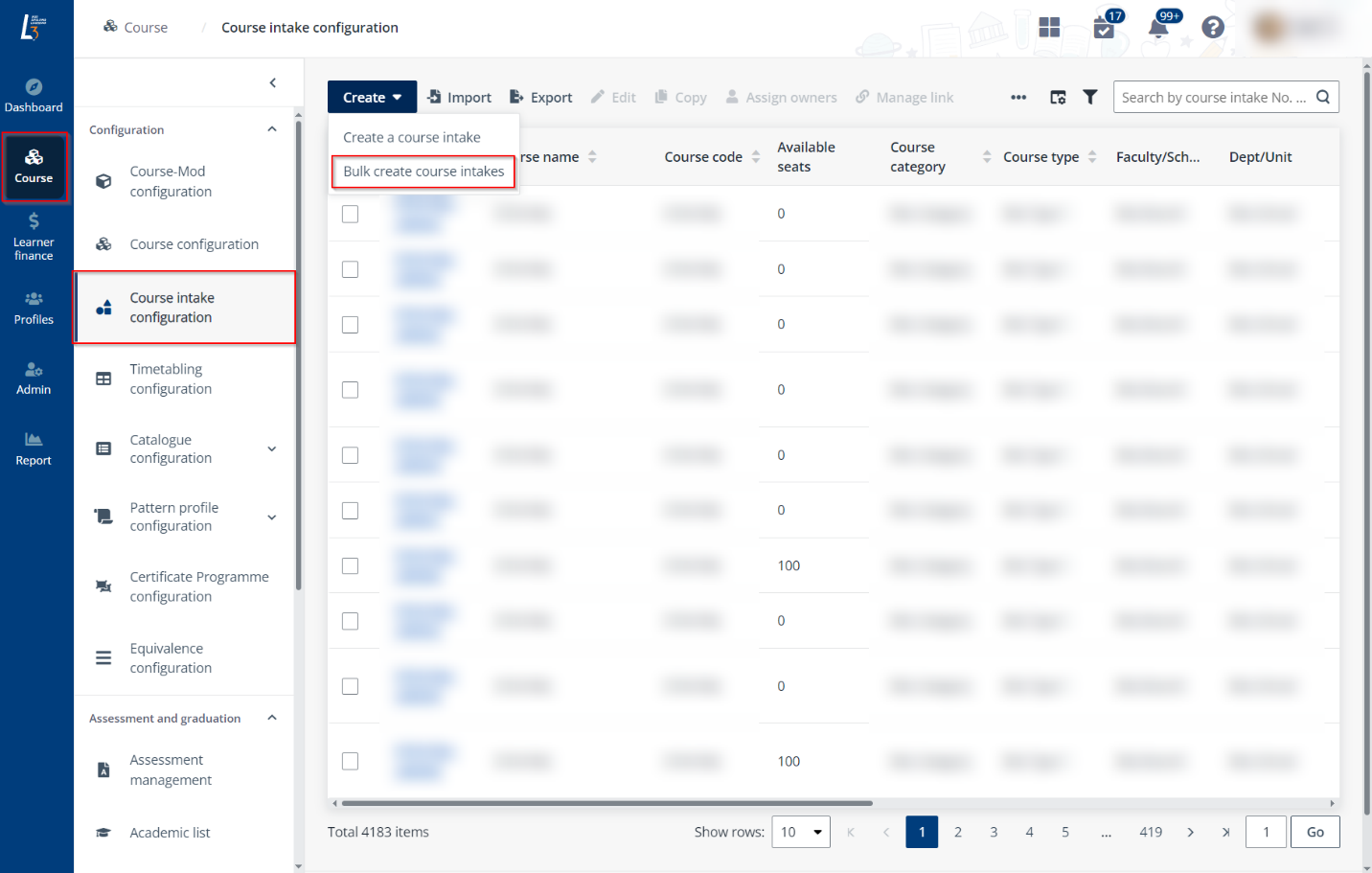
To create a course intake, navigate to Course >
Course intake configuration. In the Non-credit bearing tab, click
Create > Create a course intake, and then configure the
following settings.
General information
In Step1. General information, configure the following
settings:

1. Enter the course
name or course code to search for the course and click Retrieve to
retrieve the course information.
*Note: If the course cannot be found, ensure
that the course has been configured and activated in Course
configuration first.
2. The general
information of the course intake will be retrieved from Course
configuration.
Note the following:
•
For SSG-funded courses, TPG contact details will be retrieved from
TPG directly and not editable by administrators.
•
For SCTP (SkillsFuture Career Transition Programmes) courses, the
corresponding bundle codes will be retrieved from TPG. Administrators need to
select one bundle code for the intake, and then select a created SCTP run or
create a new one.
3. Administrators
would need to configure the schedule details with the following steps:
•
Open to – Select an option to define the audience that the
course intake is open to.
o
Public course intakes will be visible on course catalogue and available for
anyone to apply.
o
Corporate course intakes will only be visible on the company portal. With the
Corporate with funding and Corporate without funding
options selected, specify the companies.
•
Registration start date – Select the registration start
date.
•
Registration end date – Specify the registration end date
directly or specify how many days before the course intake start date that the
registration will end.
Note the following:
o
Registration end date must be before the course start date.
o For
SCTP courses, after the course intake registration period is updated via
L3AP, those for intakes in the SCTP run will be updated accordingly
as well.
•
Mode of training – Select the mode of training.
*Note: For
SSG-funded courses that have more than one mode of training, select the mode
that requires attendance taking. Administrators would be able to define the mode
of training for each session under Timetabling
configuration again.
•
Course start date and end date – For short courses, select
the Specify start date and end date option and click Add course
intake date to configure the start and end date of an intake. Administrators
may select Automatically generate end date by pattern to let the system
populate the course intake dates based on your pre-setup pattern.
Refer to Pattern profile configuration on how to
setup pattern profiles.
•
Building name – Select a building from the dropdown
list.
*Note: If the building name is not available for
selection, refer to Master data for configuration first.
•
Room – Select a room from the dropdown list.
*Note: If the room is not available for
selection, refer to Master data for configuration first.
•
Schedule information – Enter the course arrangement
information for the course intake, such as course start time and end times, etc.
The information will be displayed in course catalogue to learners.
4. Any additional
information can be included in the Additional information section,
including reference material uploaded from local devices.
5. In the Owner
assignment section, add course intake owners by selecting from the Address
book.
6. In the Billing
contact section, Fill in the information of the billing contact. Default
name and email details are populated based on the first course intake owner
configured at previous section. This information will be displayed on the
invoices.
Note the following:
•
Enter an 8-digit phone number for Course coordinator contact
number, without country code or special characters such as “+”, “-“, or
spaces.
•
Course intake owner and billing contact information are retrieved
from the configurations of the relevant course. The retrieved information can be
updated based on your requirements.
7. Click Save and
next and proceed to configure Step 2. Course intake details.
Course intake details
In Step 2. Course intake details, configure the
following settings in Course structure tab and Course
certifications tabs:

1.
In the Course structure tab, select the pattern profile to be used
accordingly. Click the View button to view details of the configured pattern
profile. Subsequently, define the first day of the course date under
Course-Mod start date.
You can also perform the following operations:
•
Set up class assignment – Select a course-mod and click Class
assignment setup. In the Class assignment setup panel, select from
the followings:
o Use
one default class – A default class will be created for this course-mod.
o
Create a new class once the class reaches your configured number of learners. If
selected, you can restrict the maximum number of learners in classes of this
course-mod.
o
Equally assign learners to your configured number of classes.
•
Set up semester/term – Select a course-mod and click
Semester/Term setup. In the Semester/Term setup panel, select a
semester for this course-mod. Available semesters/terms in the system are
created in Master data.
•
Edit course-mod owners – Select a course-mod and click Edit
course-mod owners. In the Edit course-mod owners panel, add the
owners.
2.
In the Course certifications tab, you can view the certification
structure of the course and perform the following operations.
a. Click the certificate name to view
certificate details as setup previously in Course
configuration.
b. Click Edit to edit the
certificate details. Define the text on certificate under Customise
certificate fields section
c. Click Preview sample
certificate to preview certificates.
3.
Click Save and next and proceed to configure Step 3. Course intake
registration form.
Document
For Youth Camp course intakes, you need to configure the
assessment report and acceptance letter to issue out in Step 3.
Document.
*Note: For courses other than Youth Camp, this step will remain
visible. However, the page will be locked for editing. You may proceed by
clicking Save and Next directly.

In the Assessment report and Acceptance letter
sections, you can:
•
Download a list of references for inclusion in your assessment
report and acceptance letter. After being inserted, these references will be
automatically replaced with the corresponding course information by the
system.
To download the reference list, click Download the
reference file in the upper-right of each section.
*Note: Available references in the assessment report
and acceptance letter are different. Please ensure that the inserted reference
exists in the corresponding reference list.
•
Drag or click browse to upload a DOC or DOCX file to this
course. In each section, you can only upload one document.
•
Download and preview the PDF files generated based on the uploaded
documents. To download the PDF files, click Download preview in the
lower-left of each section.
Modifications to uploaded
documents are allowed until the initial notification for each document in this
intake is issued.
•
The acceptance letter will be issued when the offer is accepted
and the billing is paid for individual and deemed paid for company.
To ensure the issuance, please turn on the notification
settings in the instance applied to this course in Service management
> Admin services > Application.
•
The assessment report is issued when the certificate is manually
or automatically issued.
To ensure the issuance, please turn on the notification
settings in the instances applied to this course in Service management
> Admin services > Academic document manual action
notification and Auto-issue certificate.

Upon completion, click Save and next to
proceed.
Course intake registration form
In Step 4. Course intake registration, select a
registration form. Click View to view the form details. The form is
inherited from course configuration but administrators may choose to edit
specific fields just for this intake only. Refer to Course
configuration on steps to configure the registration form.
Click Save and next and proceed to configure Step
4. Registration information.
Registration information
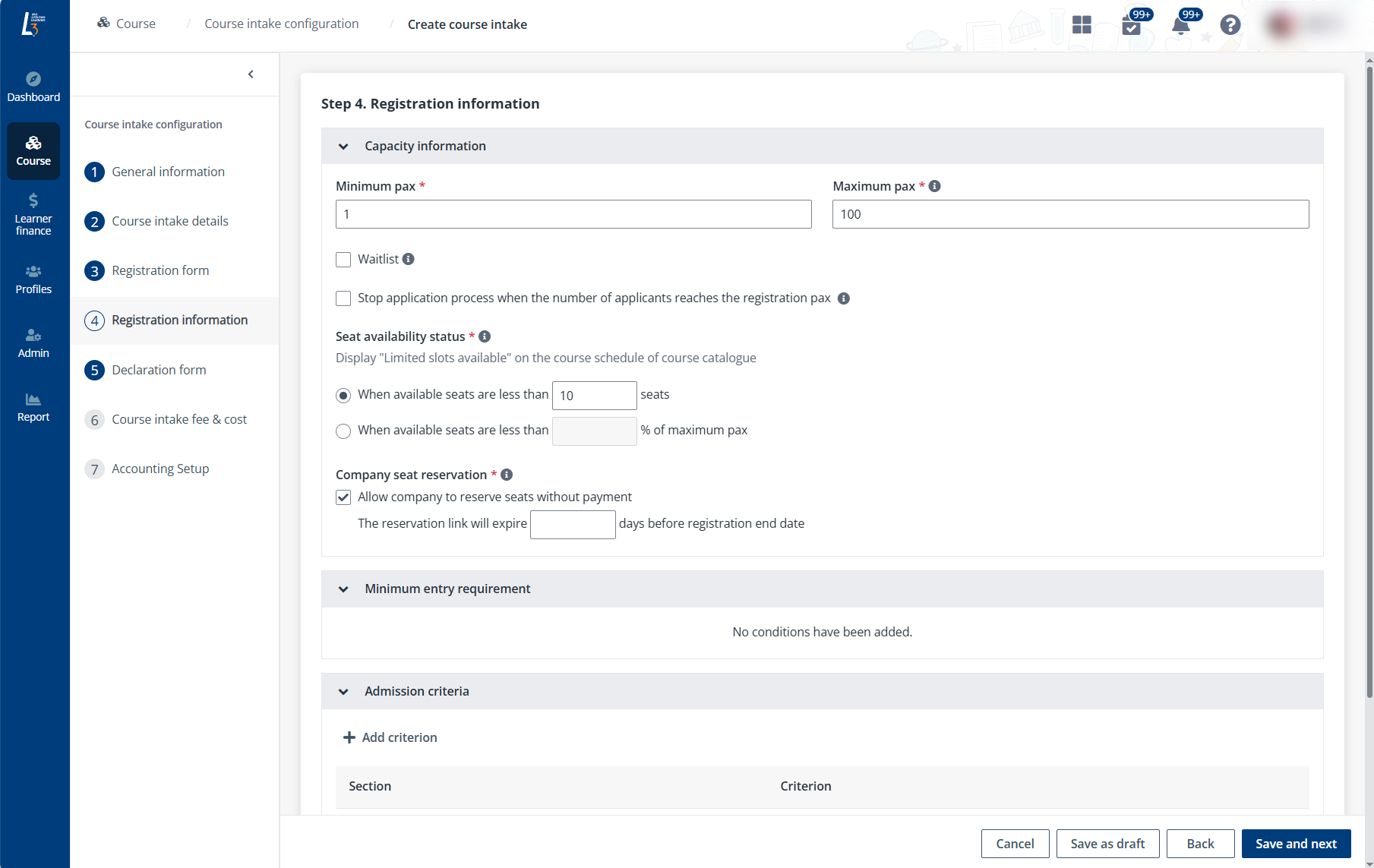
In Step 5. Registration information. Configure the
following settings:
1.
Configuration settings are inherited from course configurations. Administrators
can edit the settings specifically for this intake only by following the same
steps in Course configuration. Else, there is no
action required from administrators in this step.
•
Capacity information
o Minimum
pax – Enter the minimum pax of each course intake.
*Note: Enter a value which if applications fall
below this number the course will not run. This value is not an indication of an
ideal class size. L3AP has auto-enrolment rule set in place for each
course intake. If total applications for a particular course intake fall below
this value the auto-enrolment rule will not be triggered hence that particular
course intake will not be confirmed and no enrolment data will be synced to TPG.
o Maximum
pax – Enter the maximum pax of each course intake.
*Note: Enter a value which indicates the maximum
number of applications you would take in for a particular course intake.
o Waitlist
– Choose whether to enable the waitlist for additional registration pax. If
selected, enter the number. You can also choose whether to enable the
Automatic waitlist handling. If enabled, all waitlist applications will
be rejected one day before the course start date.
*Note: L3AP has set waitlist to default
10 pax.
o Stop
application process when the number of applicants reaches the registration
pax – If enabled, the course intake status will be “Application closed” when
the number of applicants reaches the registration pax.
o
Seat available status – Configure when to display "Limited slots
available " on the course schedule of the course catalogue.
o
Company seat reservation – Configure whether to allow companies to
reserve course seats without immediate learner registration or payment. The
reserved seats will be excluded from the available number of seats displayed for
this intake. If enabled, you can then configure an expiry day for the course
reservation link generated by companies.
•
Minimum entry requirement – When the course has the minimum entry
requirement, the conditions are displayed for reference.
*Note: SSG-funded courses will have this information
synced from CMS.
•
Admission criteria – You can add additional admission
criteria.
o Add
criterion – Click + Add criterion, select a section, and then enter
the value for the criterion. You can add multiple criteria.
*Note: Section dropdown list is populated from the
sections in registration form configured in previous step.
o Evaluation
criteria description – Enter a description for the evaluation criteria.
2.
Click Save and next and proceed to configure Step 5. Declaration
form.
Declaration form
In Step 5. Declaration form, select applicable
declaration forms that are visible to applicants. Click Preview to
confirm the selection. Default declaration forms for SSG-funded courses have
been pre-setup by SCALE team under Admin > Form template
library. Additional forms can be added by clicking Add declaration
form.
Note the following:
•
Select respective declaration under Residential address
declaration form for SSG-funded courses. System will only display this
declaration to applicants who stated residential address as
Non-Singapore.
•
If the course type is Youth Camp, the declaration form will
be turned off and not available for editing. All information requiring
acknowledgement is included in the indemnity form filled in and uploaded in
registration form.
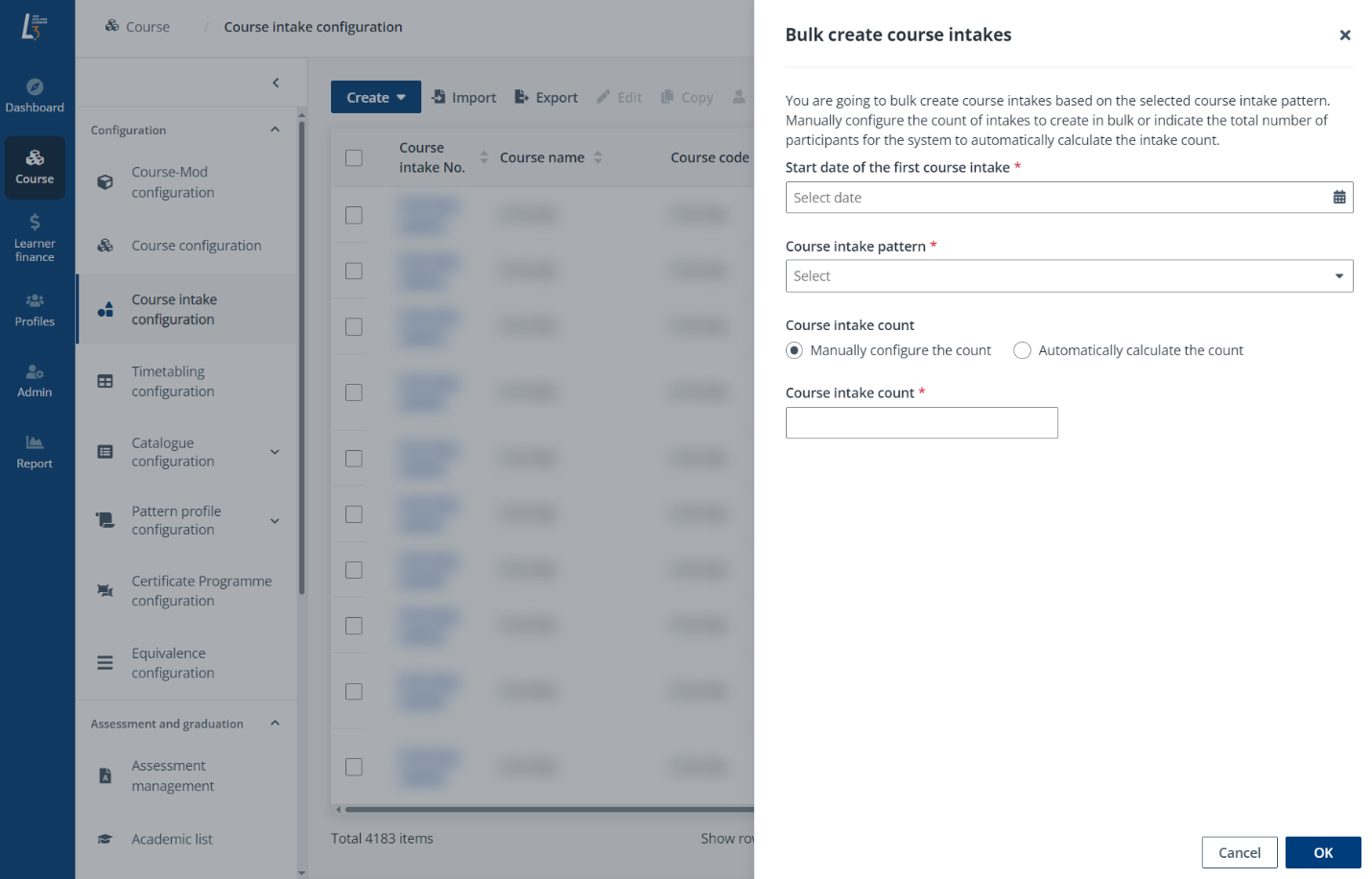
Click Save and next and proceed to configure Step
6. Course intake fee.
Course intake fee and cost
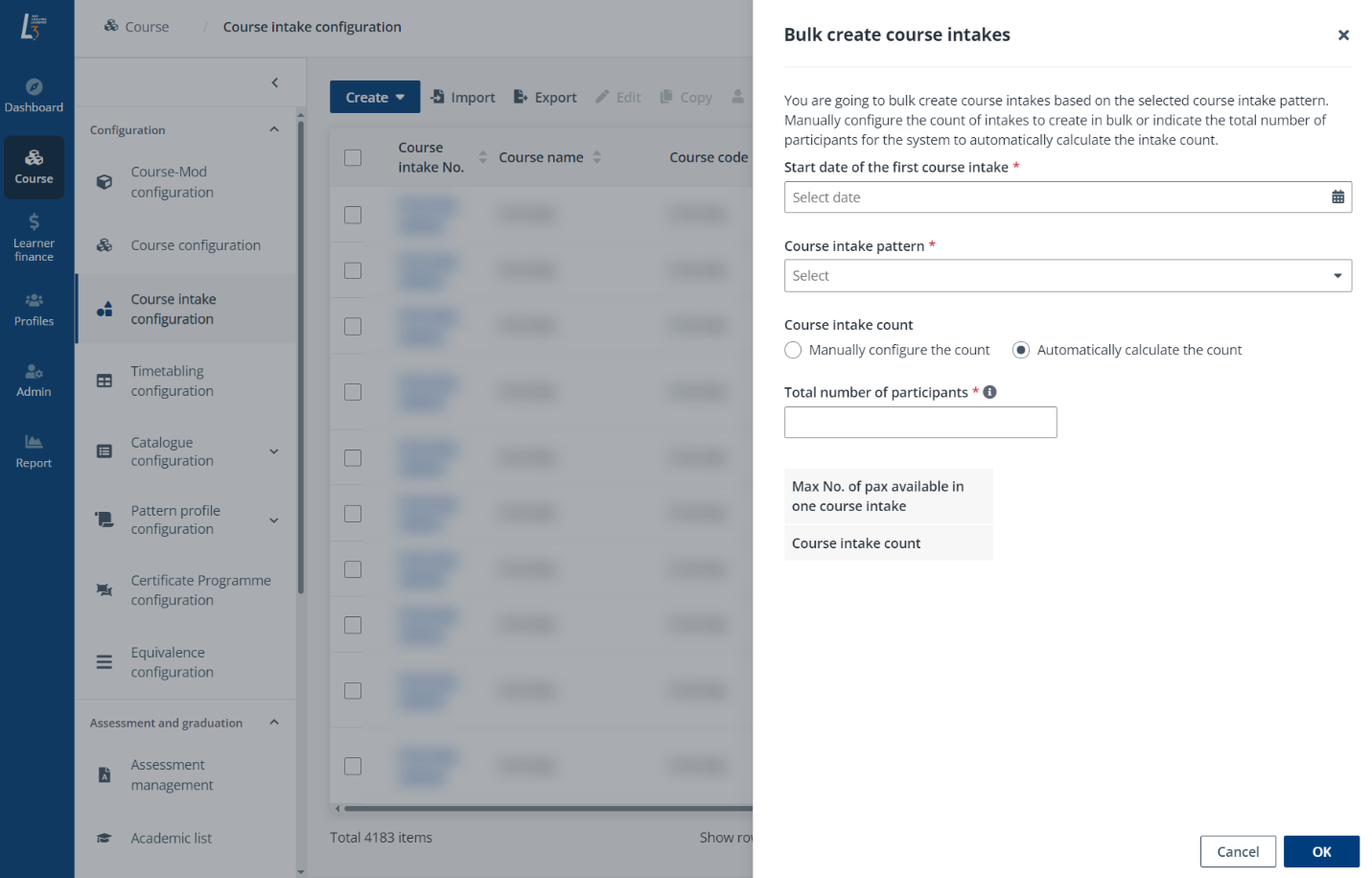
In Step 6. Course intake fee & cost, specify a
date to invoice the sponsoring company and the payment option.
The available payment options of a course intake include:
•
Pay-upon-application (PUA) – The payment needs to be made when the
learner submits the application. Additionally, offer of the course will not need
to be manually sent to the learner.
•
Pay-upon-offer (PUO) – The payment needs to be made when a learner
accepts the sent offer.
For details on the PUA and PUO course application management
and steps on applying for both types of courses on behalf of a learner, refer to
Application status and
available actions.

Most of the settings in this step will be inherited from
course configuration.
For Youth Camp courses that are
open to corporates without fundings, the course rate can be structured such that
a predefined number of learners is billed as a lump sum, with a specified
deposit percentage required upfront. Any additional learners beyond the initial
group will be charged separately at an alternative rate.
To set up deposit rate of the course, complete the following
steps:
1. In the Course
intake setup section, select Deposit in the Rate by field.

2. When the intake
is rated by Deposit, the GST rate code field will be editable.
Selected GST rate code will be applied to all invoiced generated for this
intake.
3. Then, in the
Rate setup section, you can configure:
•
Max No. of pax – Enter the maximum number of pax in the
package. Applicants within this number will be billed by the package rate.
•
Rate (S$) without (GST) in the package rate row – Enter the
total amount of package rate.
•
Deposit (%) – Enter the percentage of the total package
rate to be billed upfront.
Additionally, you can add additional pax to add a separate
rate for learner beyond the contracted pax by clicking Add additional pax. Then,
enter the Max No. of pax for the additional pax and the amount of Flat
rate per pax.
*Note: The total number of package and additional
pax cannot exceed the total pax available for this intake configured in Step
5. Registration information.
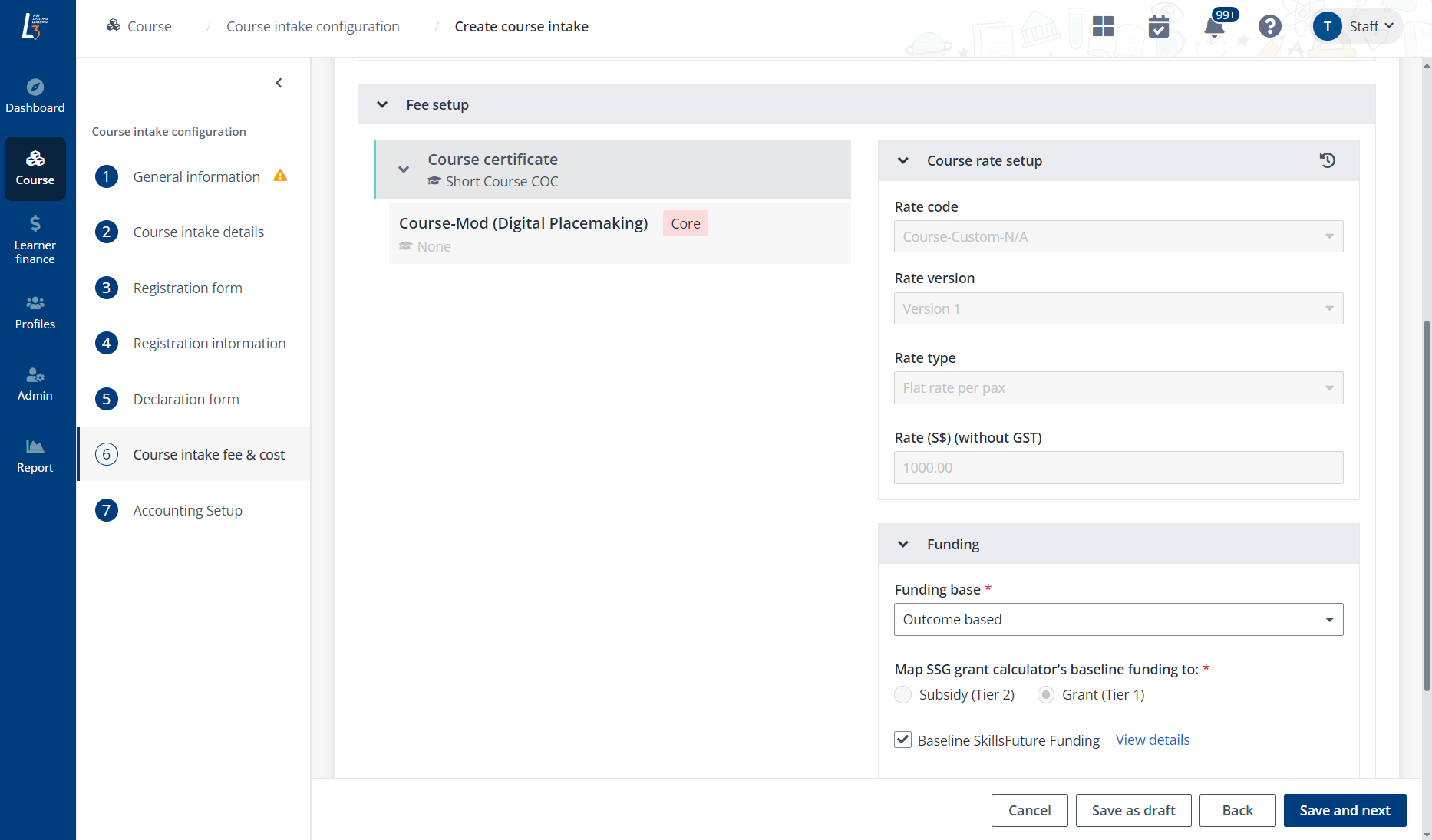
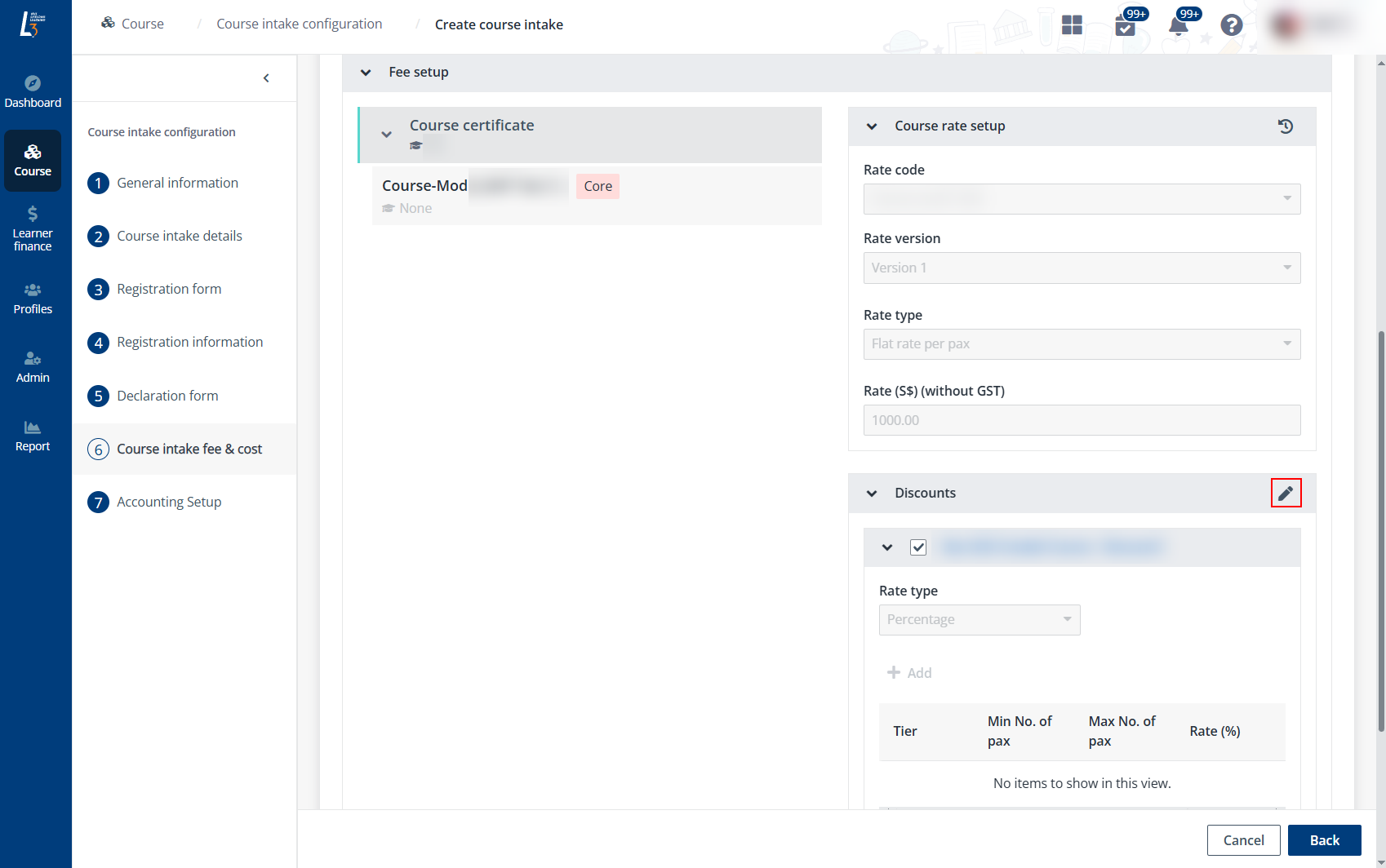
If the course intake has applicable discounts, select the
discounts available for the intake. During learners’ course applications and
payments, the highest applicable discounts will be automatically assigned to
them. To edit the setup of a discount, click the Edit button and complete
your updates.

After finishing all required configurations, click Save
and next to go to Step 7. Accounting Setup.
Accounting Setup

In Step 7. Accounting Setup section,
configurations will be inherited from course configurated by OFN Student Finance
team. Administrators can select respective credit WBS account for this intake
here if applicable.
Click Complete and click Publish on the popup
window in order for this intake to be visible by applicants.
*Note: The intake will only be available after it has
been published.
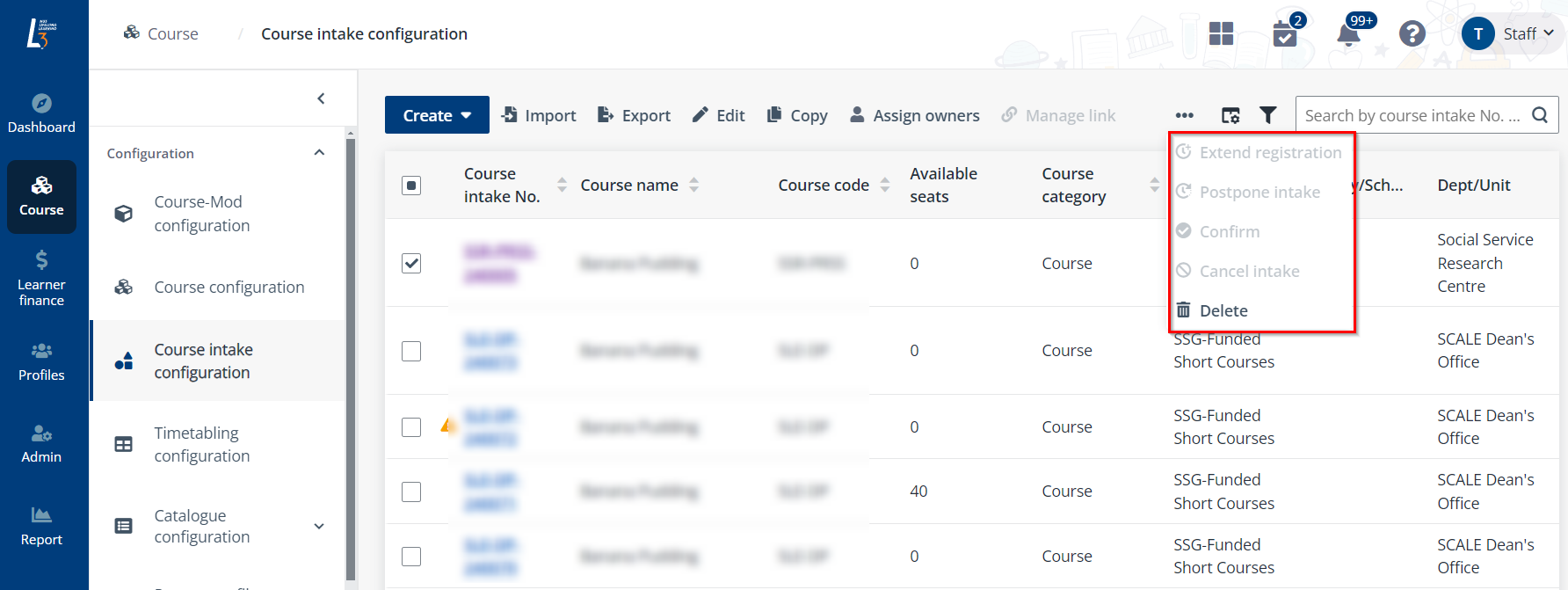
Additional actions
After a course intake has been set up, administrators can
perform the following actions:
