In My
calendar, trainers can check the timetable of their sessions and set
unavailable time.
View the timetable
Complete the following steps to view the timetable.
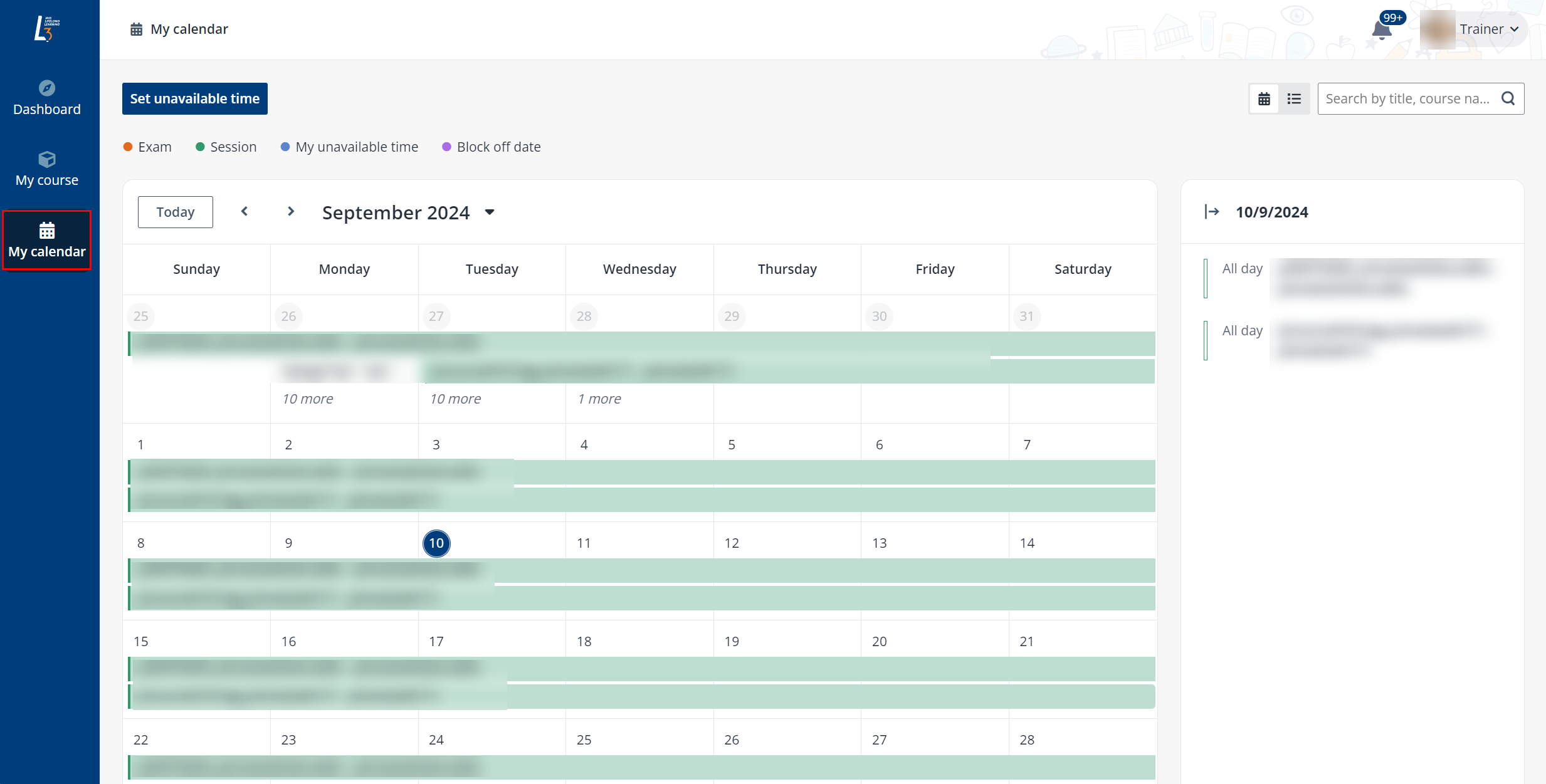
1. Click My
calendar on the left navigation pane.
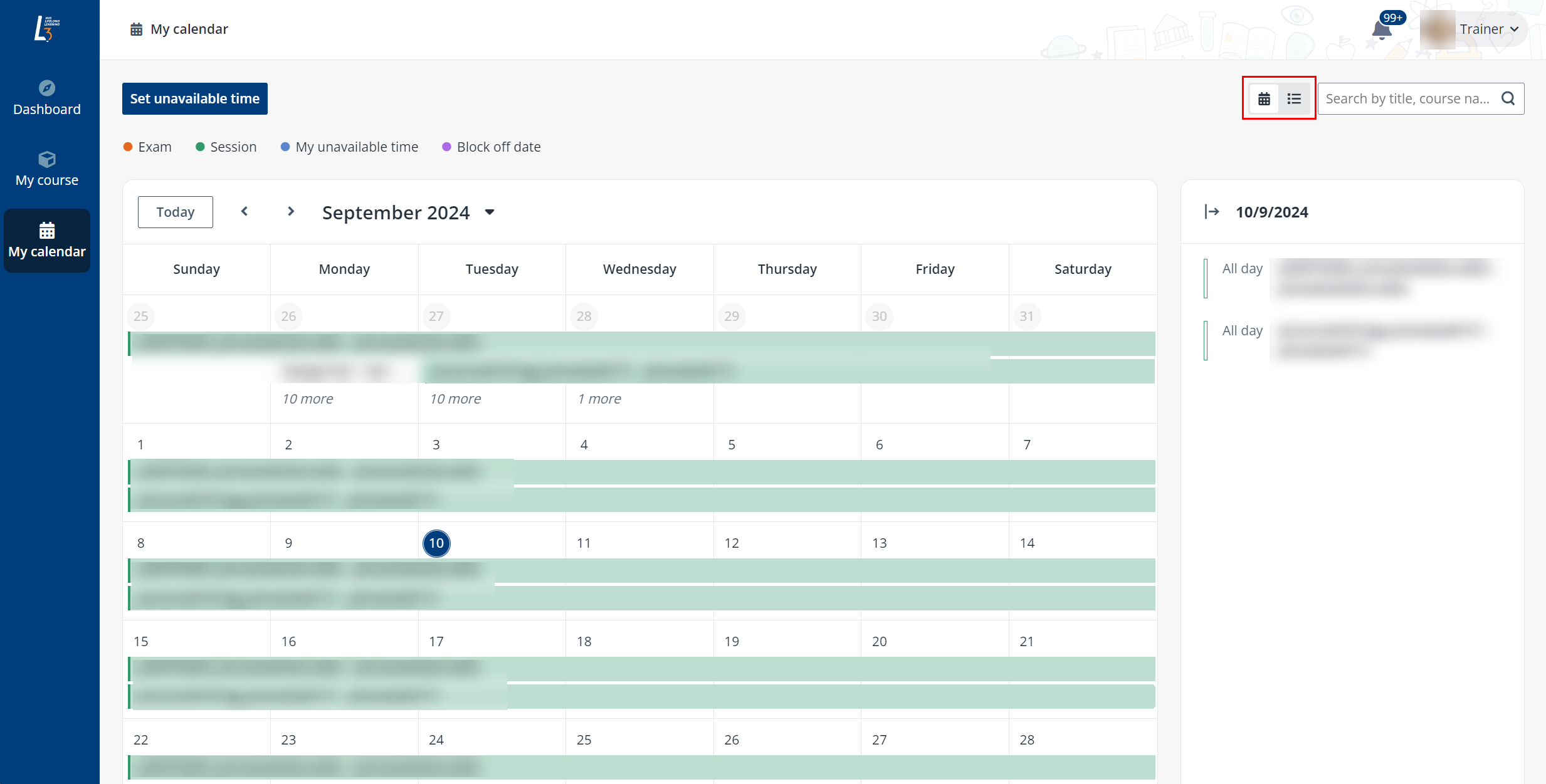
2. On the My
calendar page, the trainer can view the sessions by switching between the
Calendar view and Table view.
•
Calendar view – All sessions in the current month are listed on
the monthly calendar.
•
Table view – The trainer can see all sessions that are arranged
today. The trainer can use the Date range filter to view completed or
upcoming sessions.
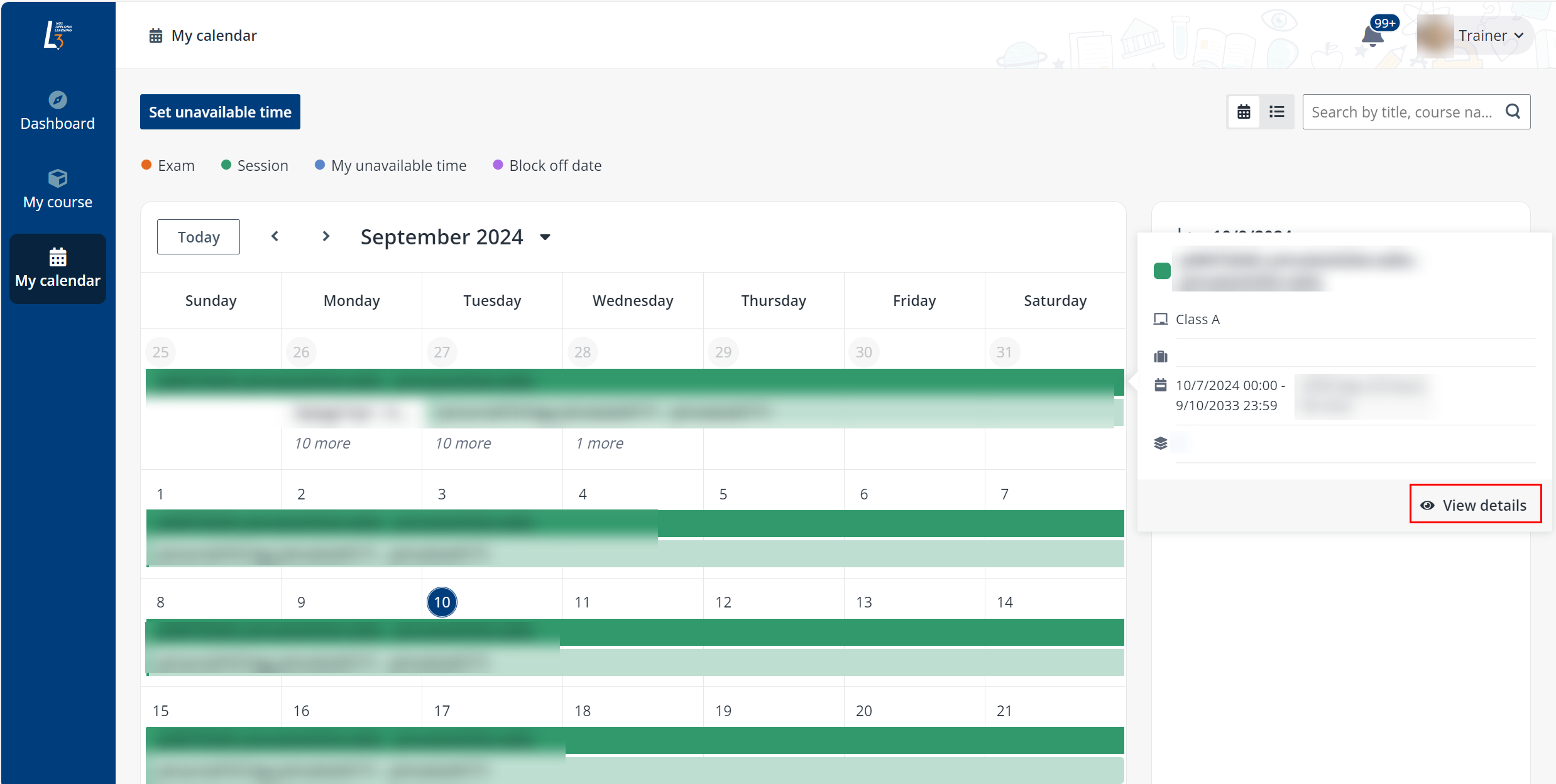
3. Locate the
session, clicks the session name, and then clicks View details to view
schedule details.
*Note: The trainer can also go to the Dashboard
page to view the upcoming sessions. If the trainer wants to view all sessions,
click See all in the Upcoming sessions section.
Set unavailable time
Trainers can specify the personal time when they won’t be
available for session assignments. To set an unavailable time, refer to the
instructions below:
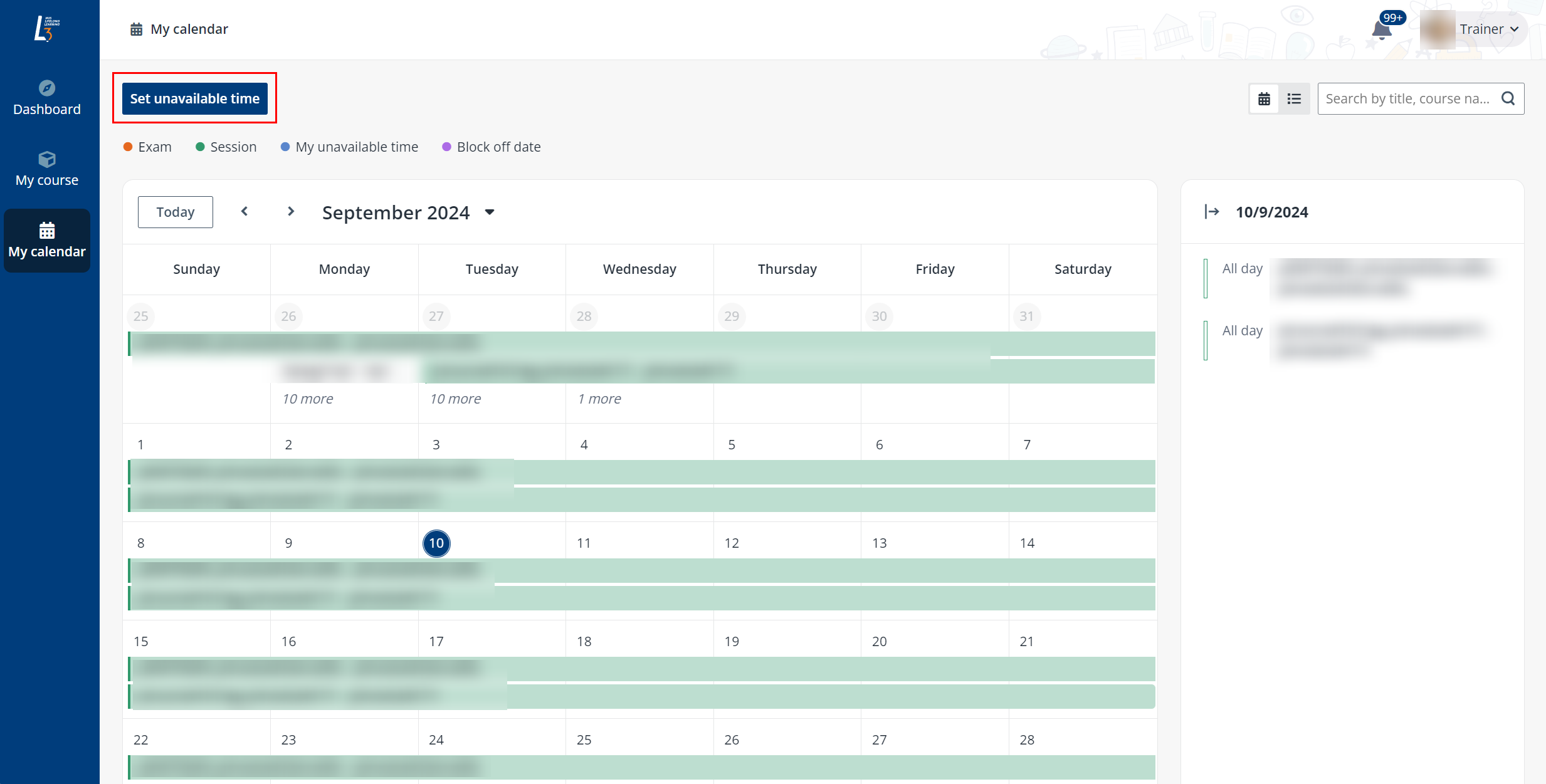
1. Click My
calendar on the left navigation pane.
2. Click Set
unavailable time.
3. Fill in the
information of the time.
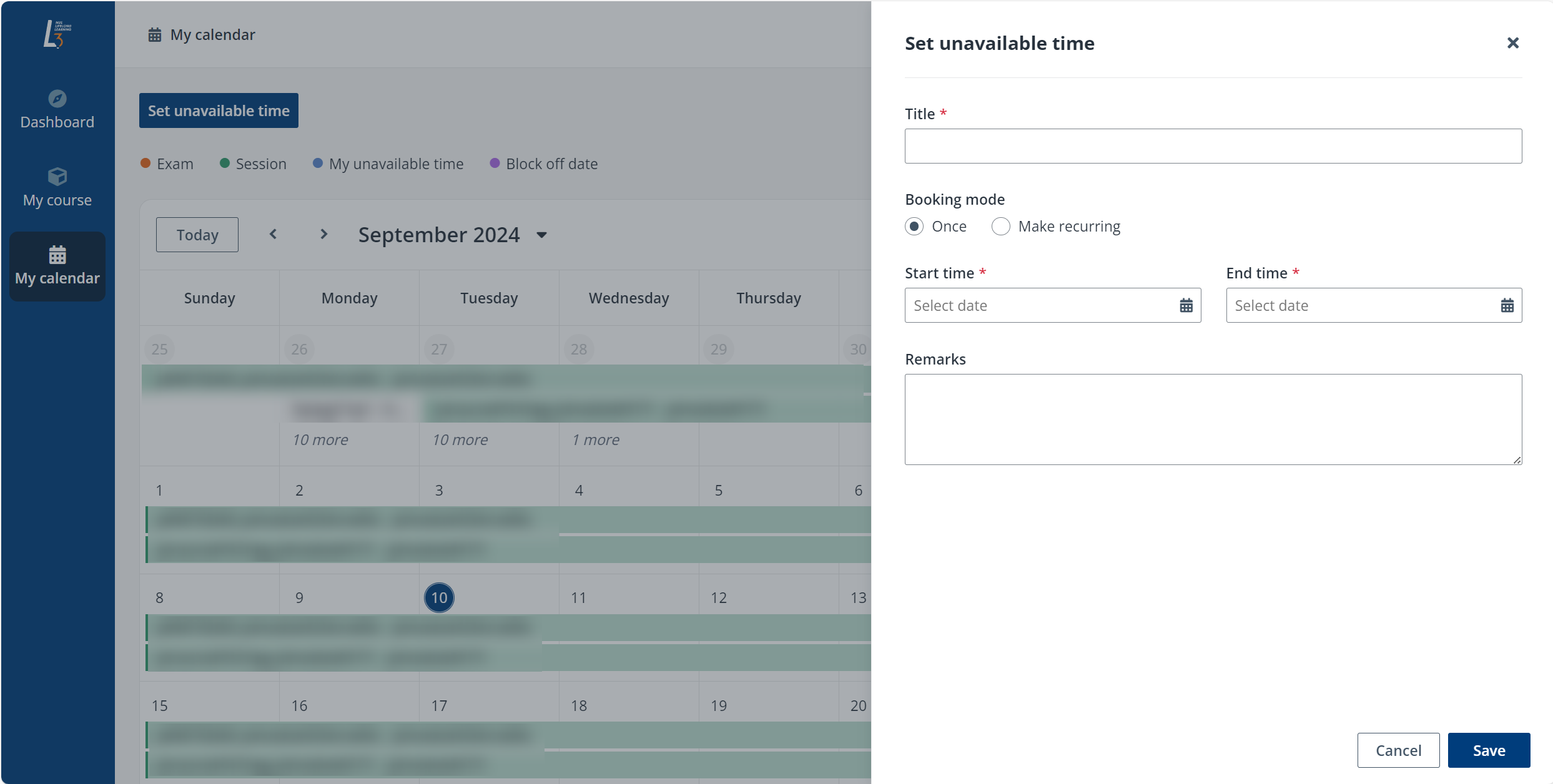
*Note: If the trainer wants to specify recurrence
time for the appointment, the trainer can select Make recuring. The
appointment will recur based on the trainer’s requirements.
4. When finishing
the configurations, Click Save.
Download the timetable
Refer to the following instructions to see how to download a
timetable:
1. Click My
calendar on the left navigation pane.
2. Select the
Table view icon.
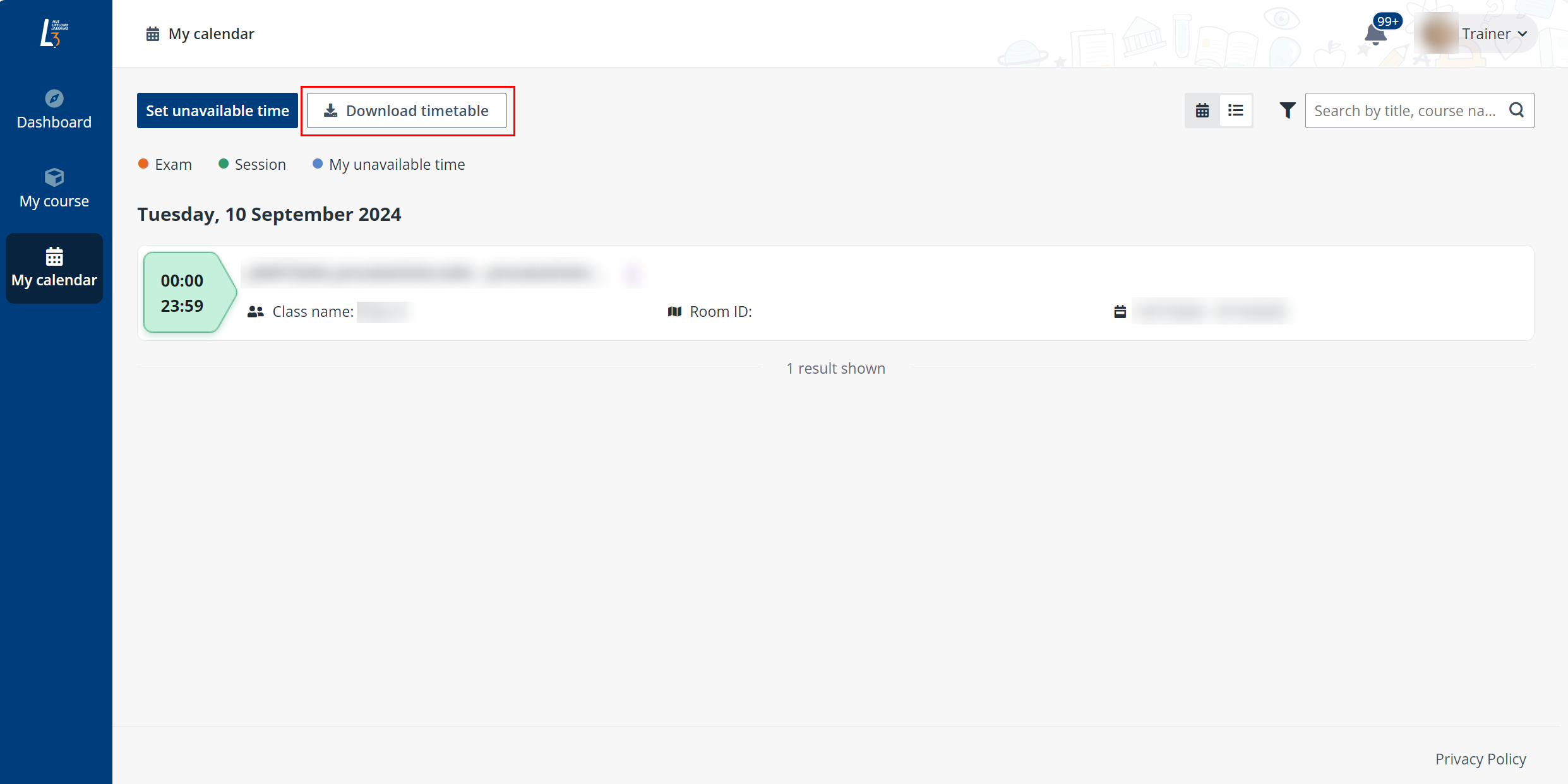
3. Click Download
timetable. The sessions will be exported to an ICS file.