Mark attendance status manually
1. Click My course on the left navigation pane.
2. Find the course, click the course card, and then click the course-mod name.
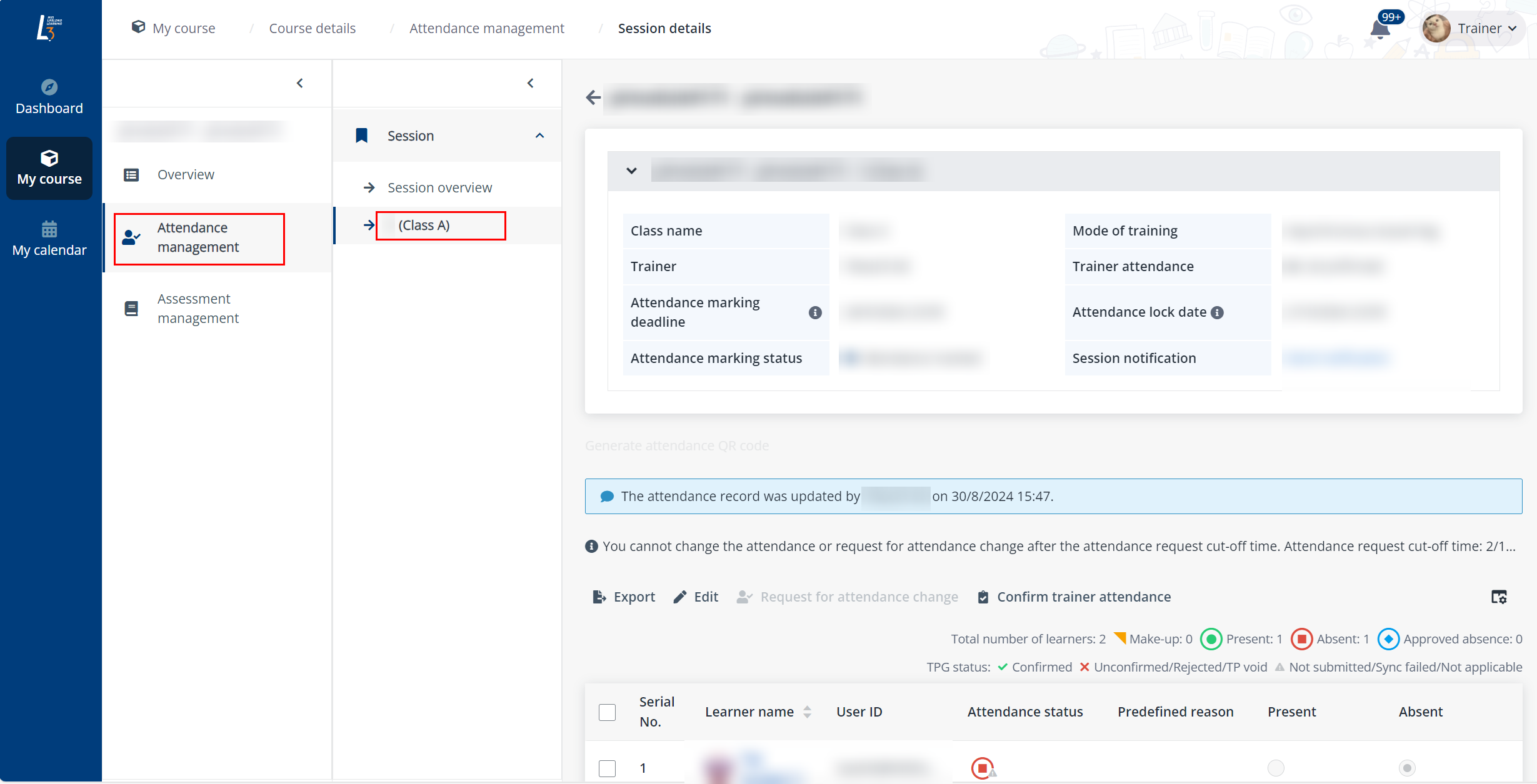
3. Click Attendance management in the left navigation, and then click the name of a session. The trainer can view the session details and all learners in the session.
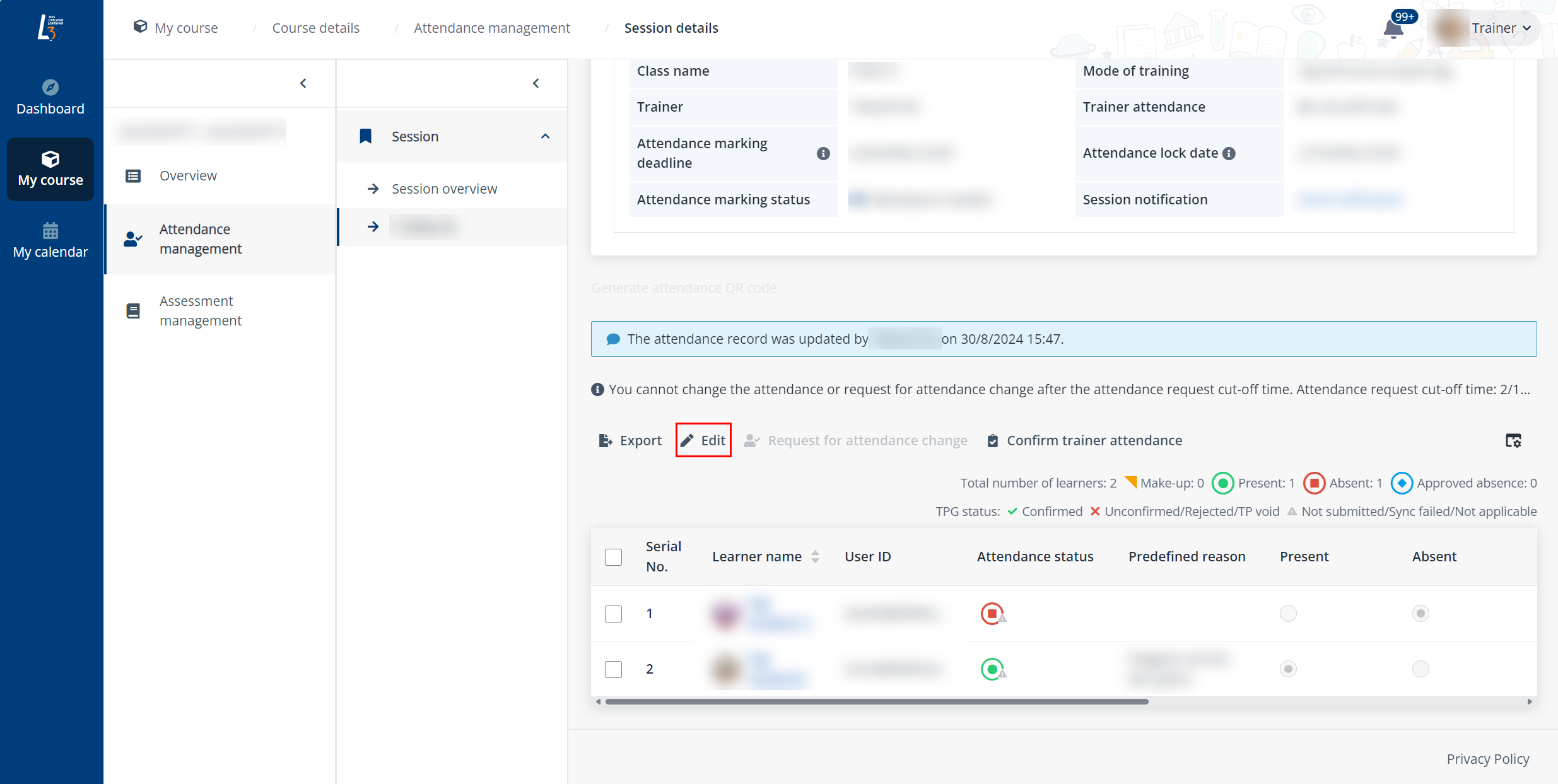
4. In the learner list, click Edit.
5. Mark the Present or Absent status for each learner, and enter remarks for a learner.
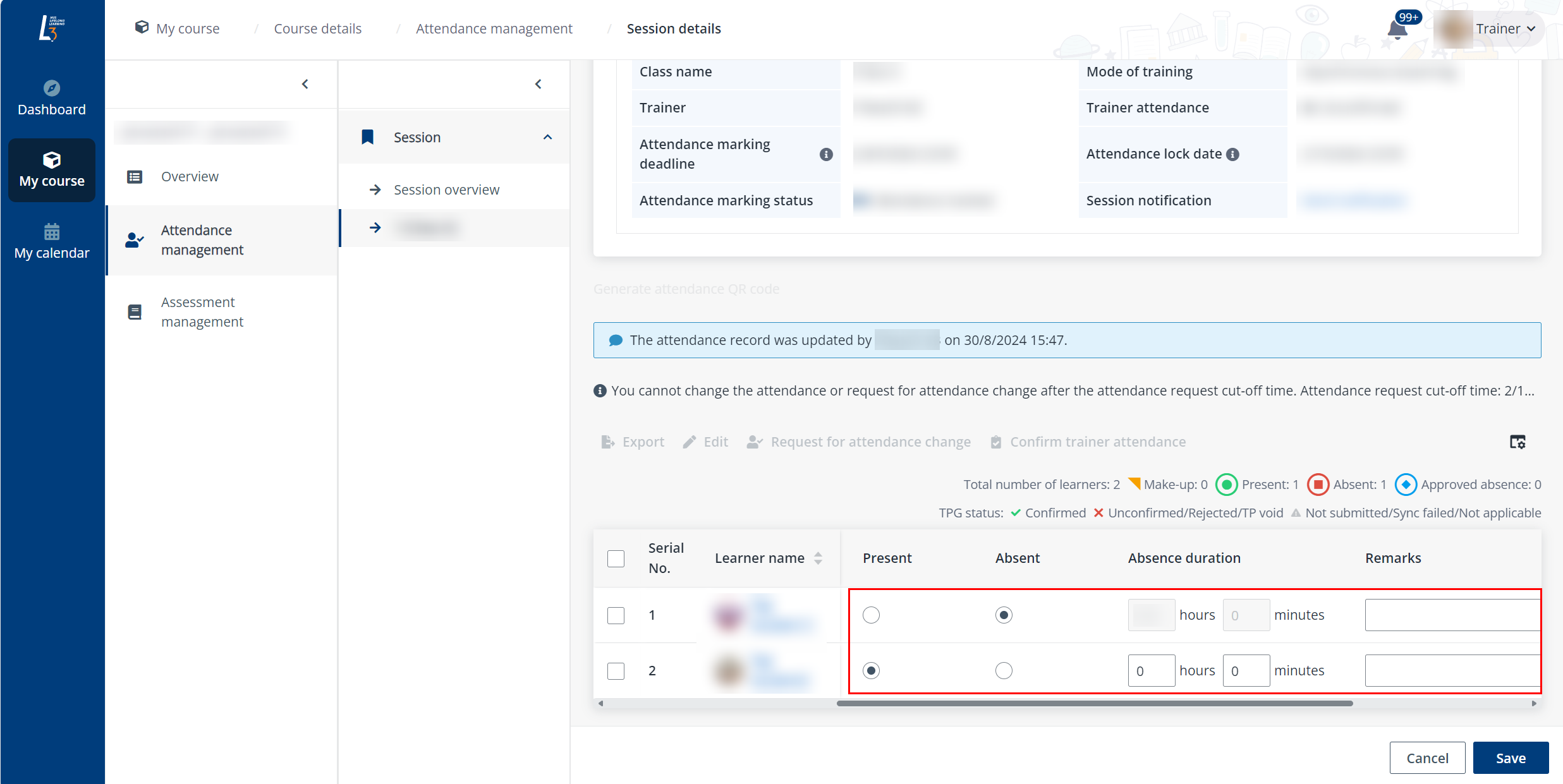
*Note: The trainer can only mark attendance status for learners before the attendance marking deadline. If the trainer wants to update the learner attendance after the deadline, the trainer needs to submit a request.
6. When finishing the attendance marking, click Save.
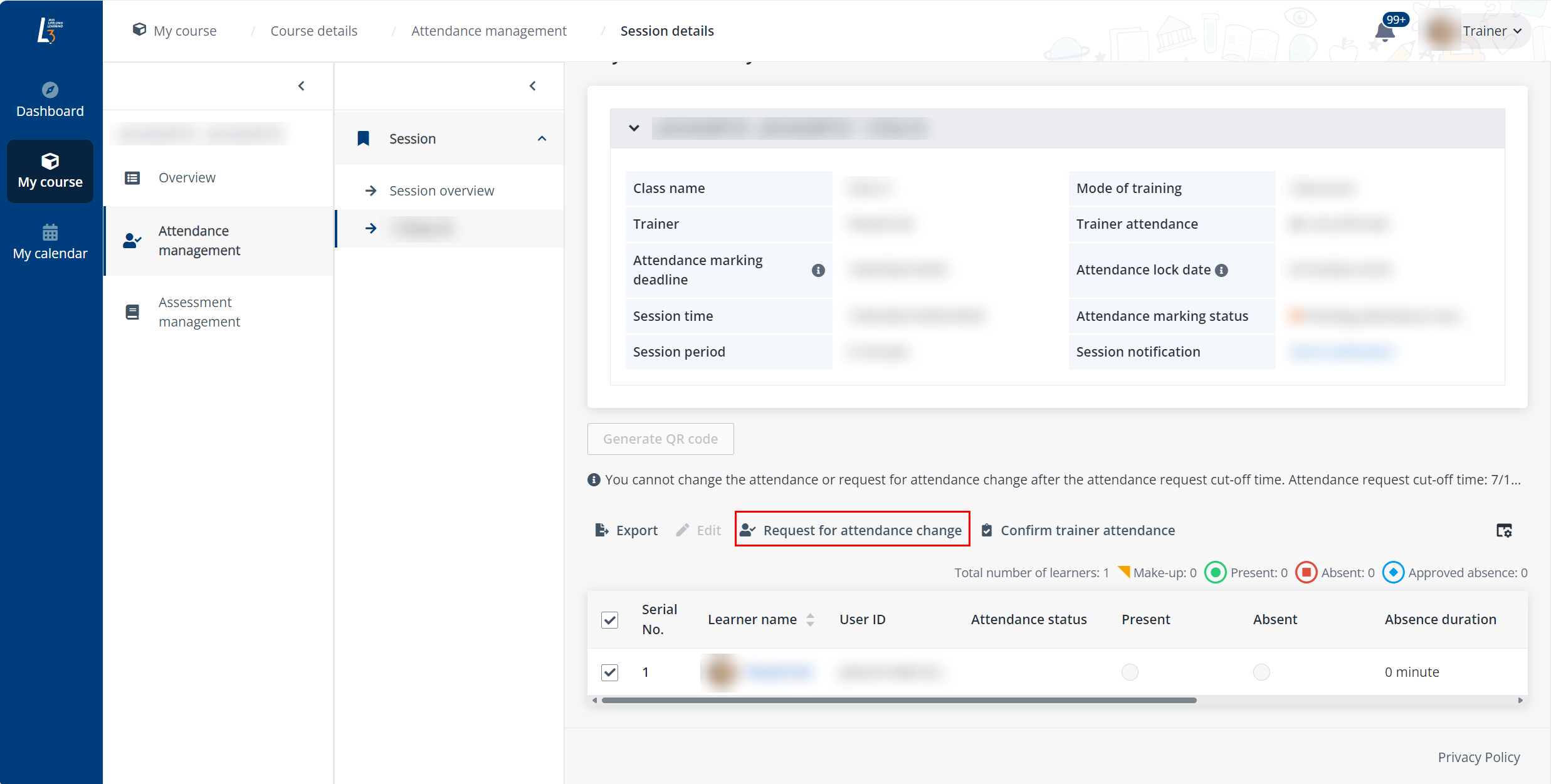
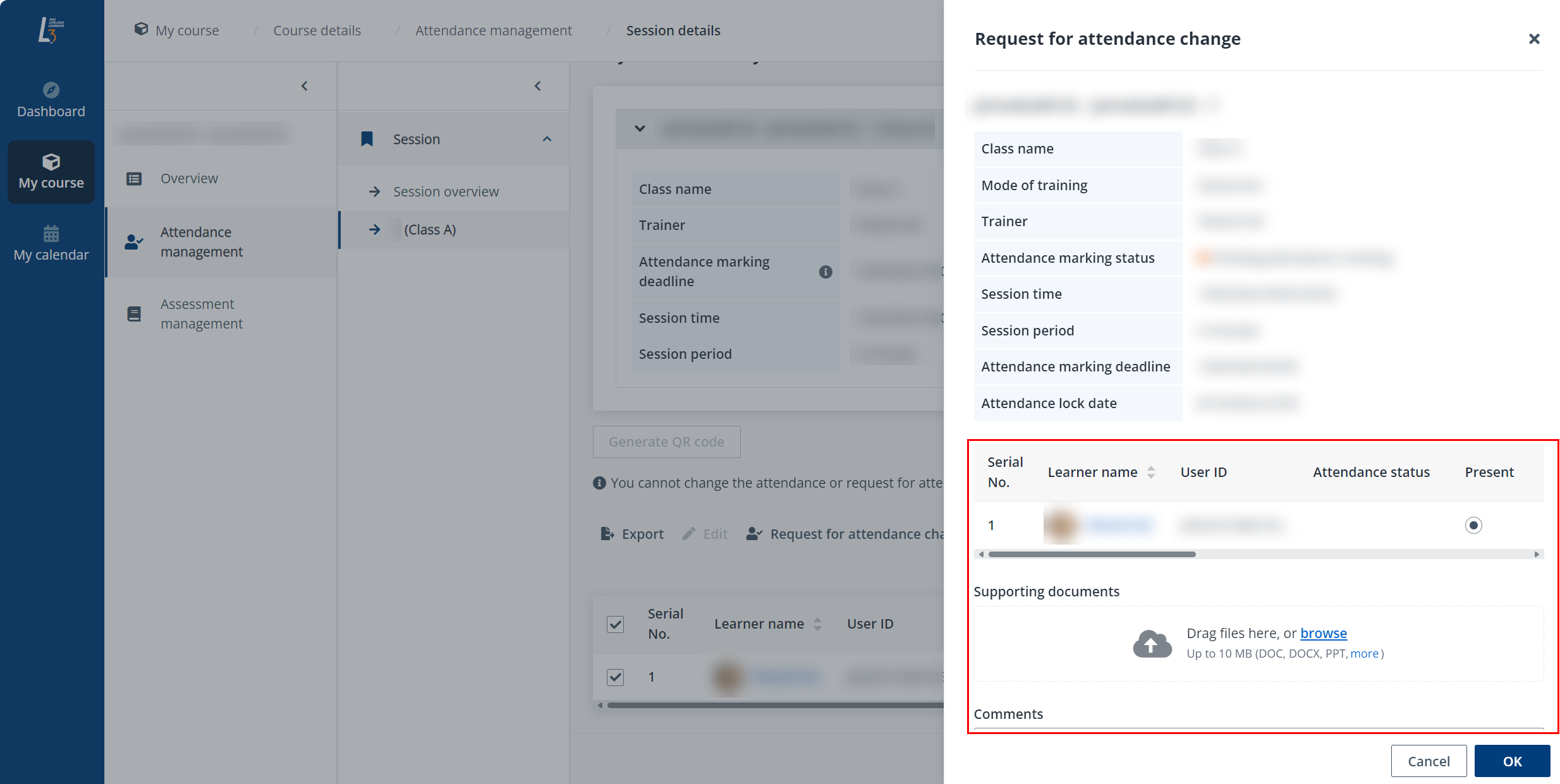
The attendance marking deadline has passed and the trainer can submit a request to update the attendance status for several learners. Refer to the instructions below to update the attendance status after the attendance marking deadline.