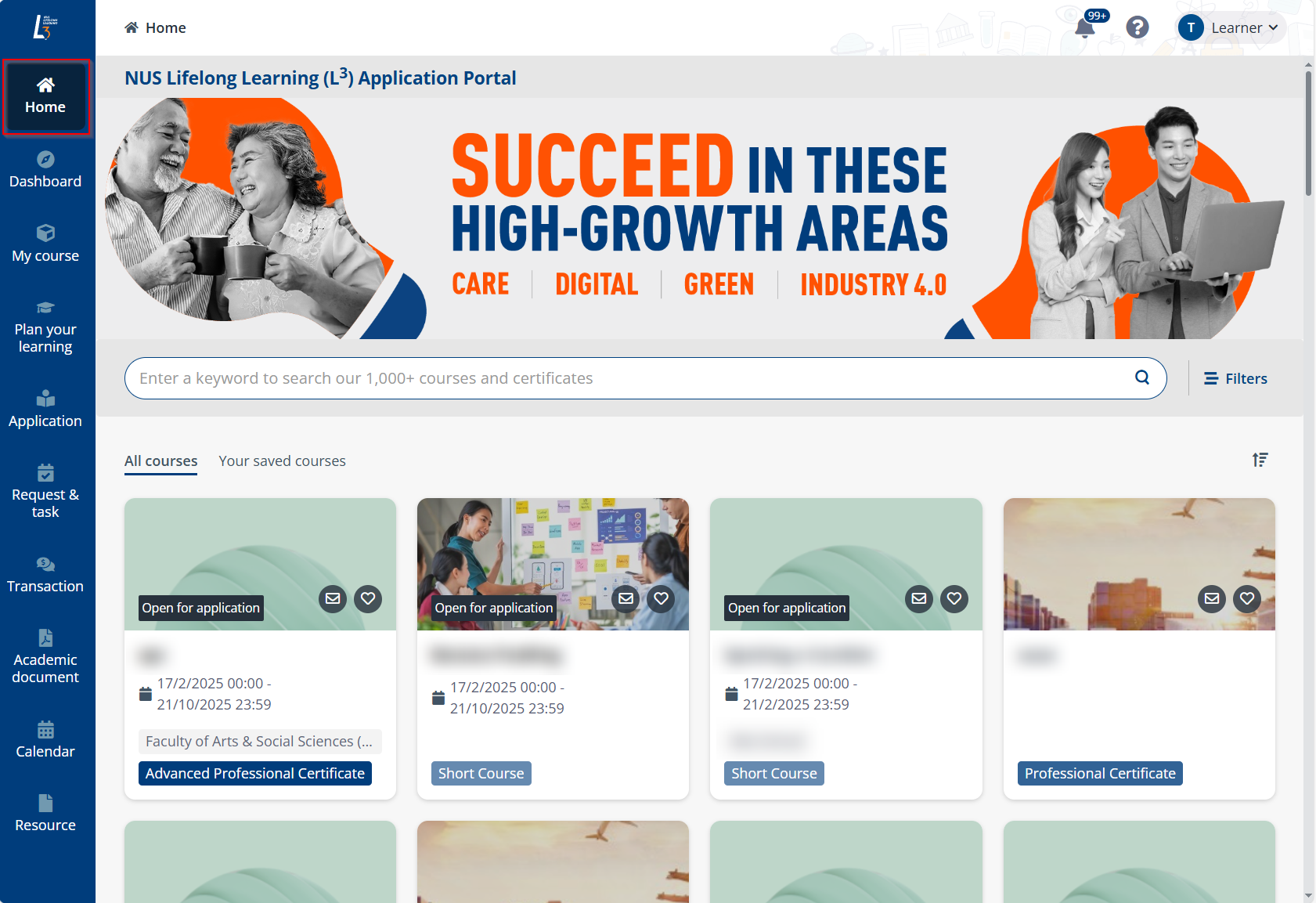
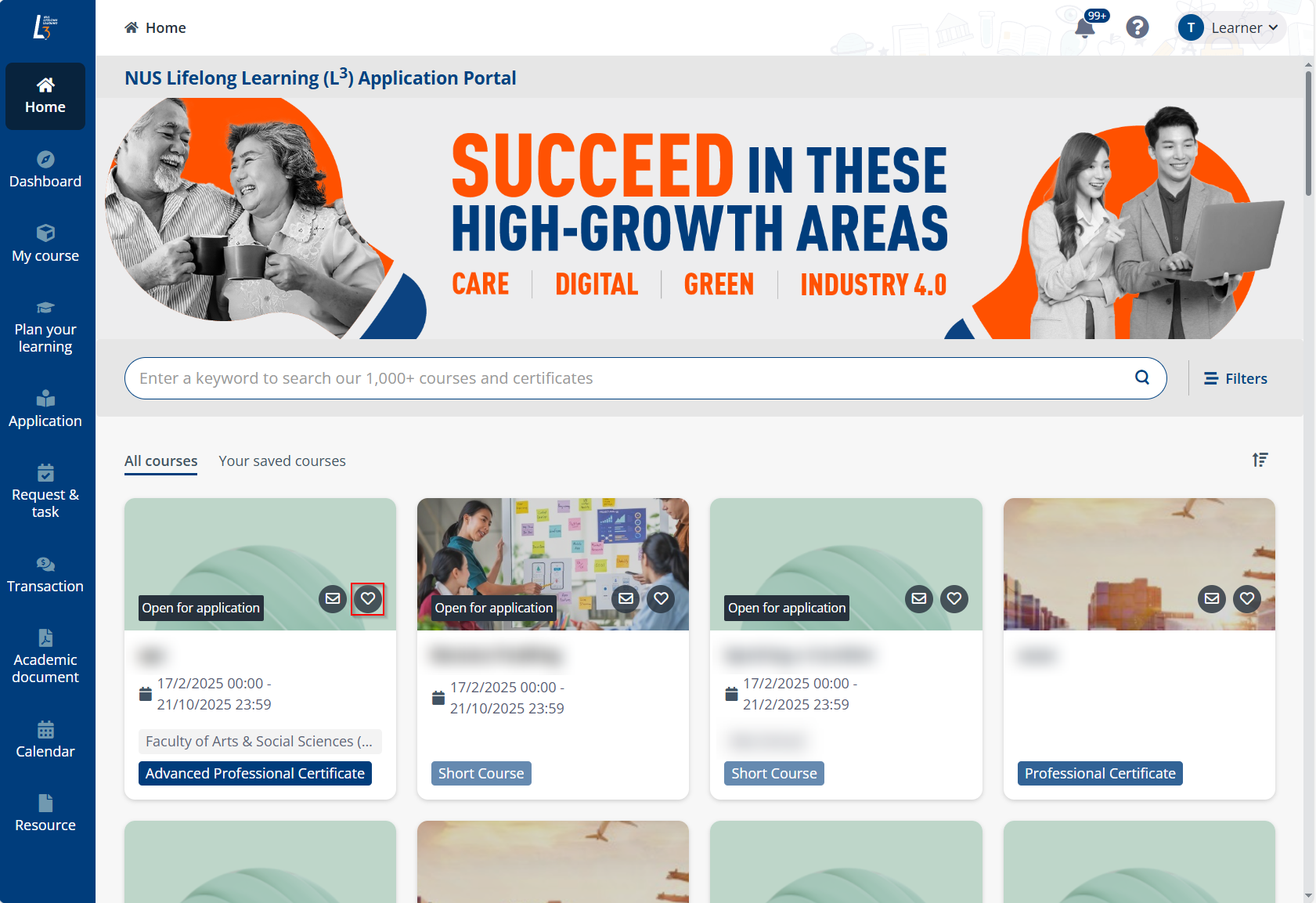
After you are enrolled and attend courses, surveys will be sent to you for evaluation of the courses, modules, and trainers. To view all the surveys sent to you and complete them, click your photo in the upper-right corner, and then click My profile.
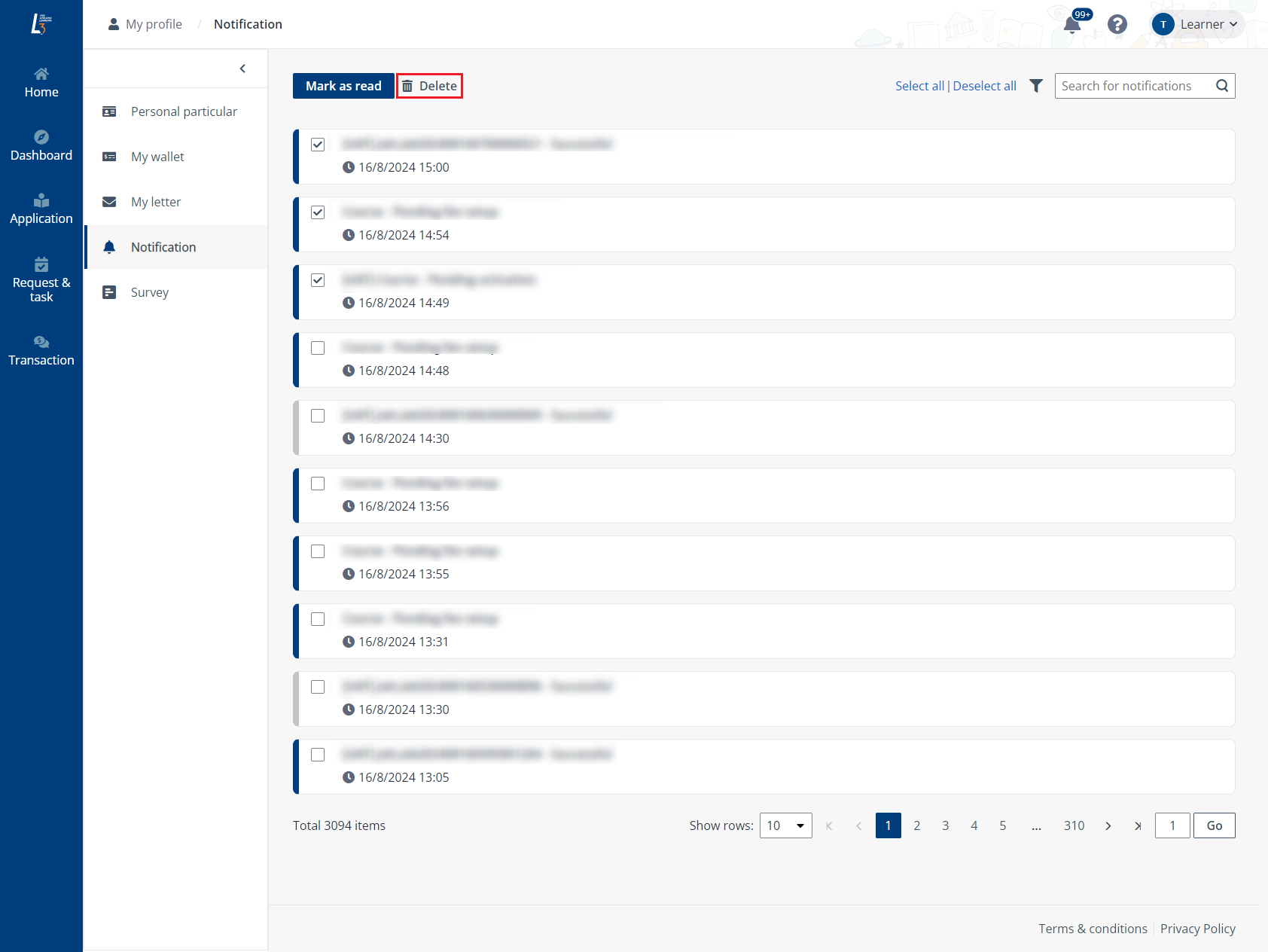
Then, click Survey in the left navigation of your profile.
To submit a survey, complete the following steps:
1. You can view your pending submission survey in one of the following ways:
•In Learner portal, on the Survey page in your profile, all unsubmitted surveys are in the Unsubmitted tab. Click a survey card to view the survey content.
•If a survey QR code was sent to you, scan the QR code with your device and then sign-in with your system account to view the survey
•If an anonymous survey submission link was sent to you, access the survey page via the link. You can then complete the survey without system account sign-in.
2. On the Survey details page, view the survey details and complete questions in the survey.
3. Click Submit.
Submitted surveys are listed in the Submitted tab.
To view the details of a submitted survey, complete the following steps:
1. Click the card of the survey that to view.
2. On the Survey details page, the survey details, including the survey information and submitted survey results are displayed.
3. Click Close to go back to the Survey page.