To apply for a course or certificate programme, complete the following steps:
*Note: If you are a company-sponsored applicant, click the link provided by your company and complete the sign-up or sign-in process. In the case where you exit the process halfway, always use the link to bring you back to the application. For details on the course application steps as a company-sponsored applicant, directly refer to the Applicant details section and its following sections below.
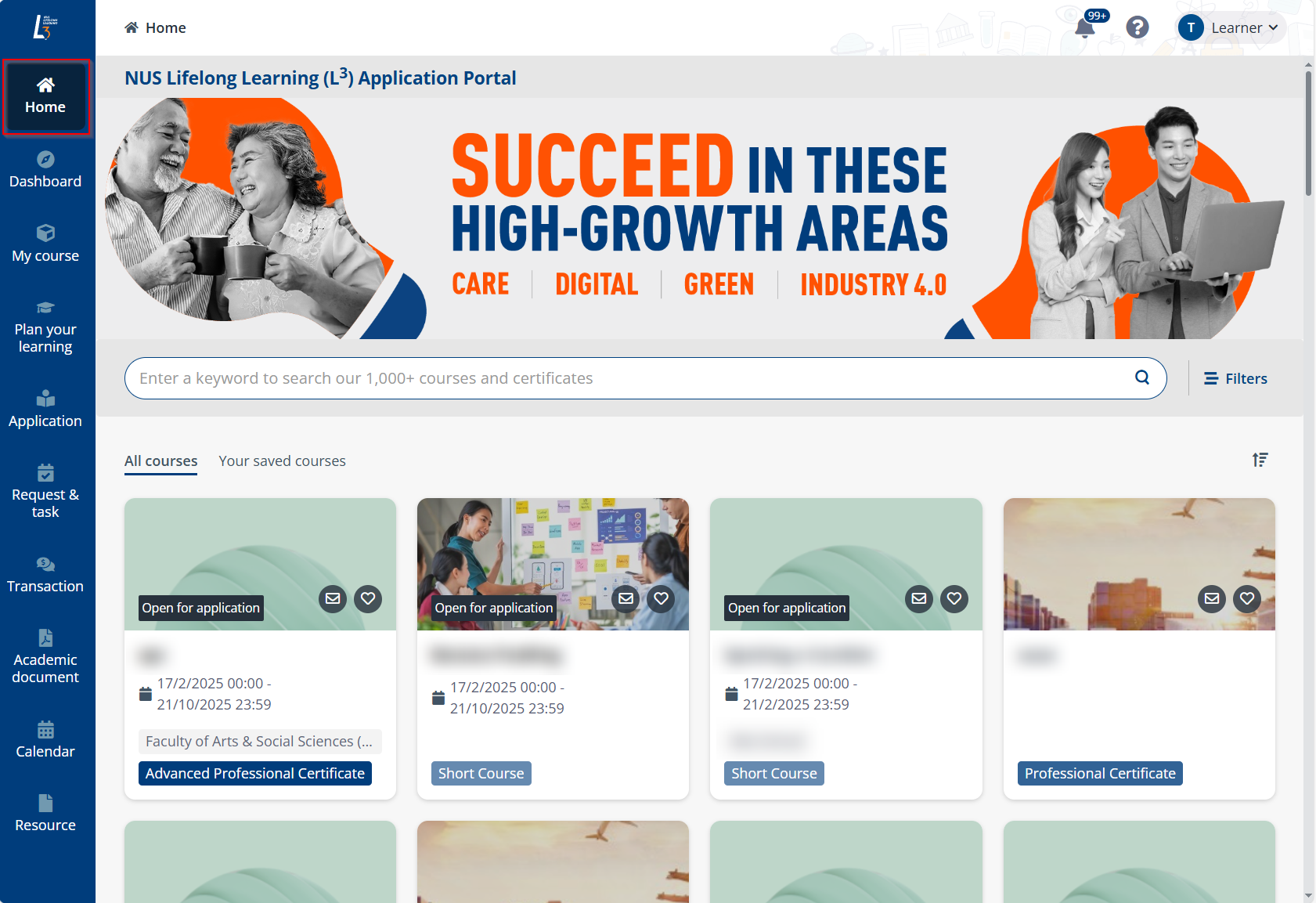
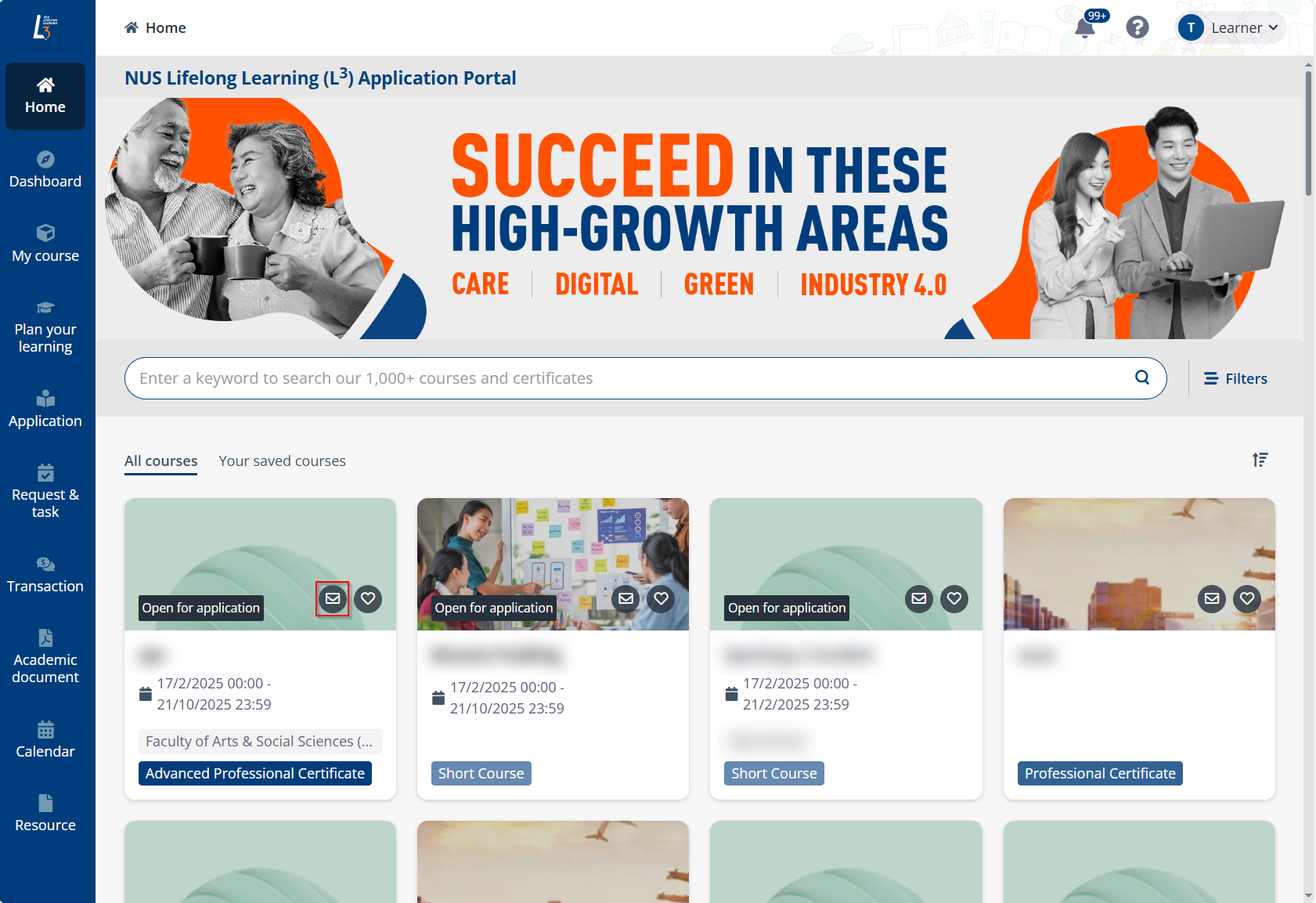
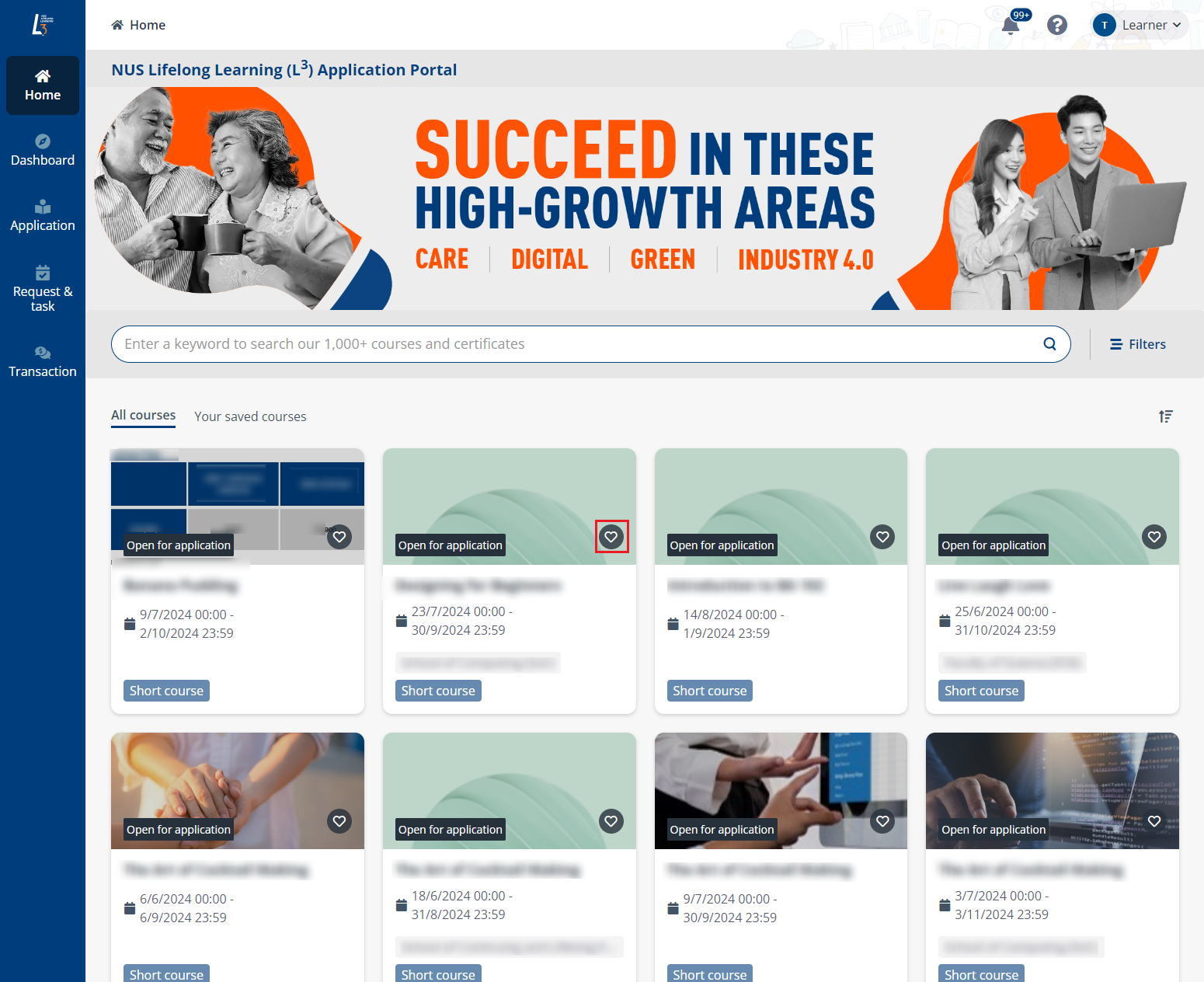
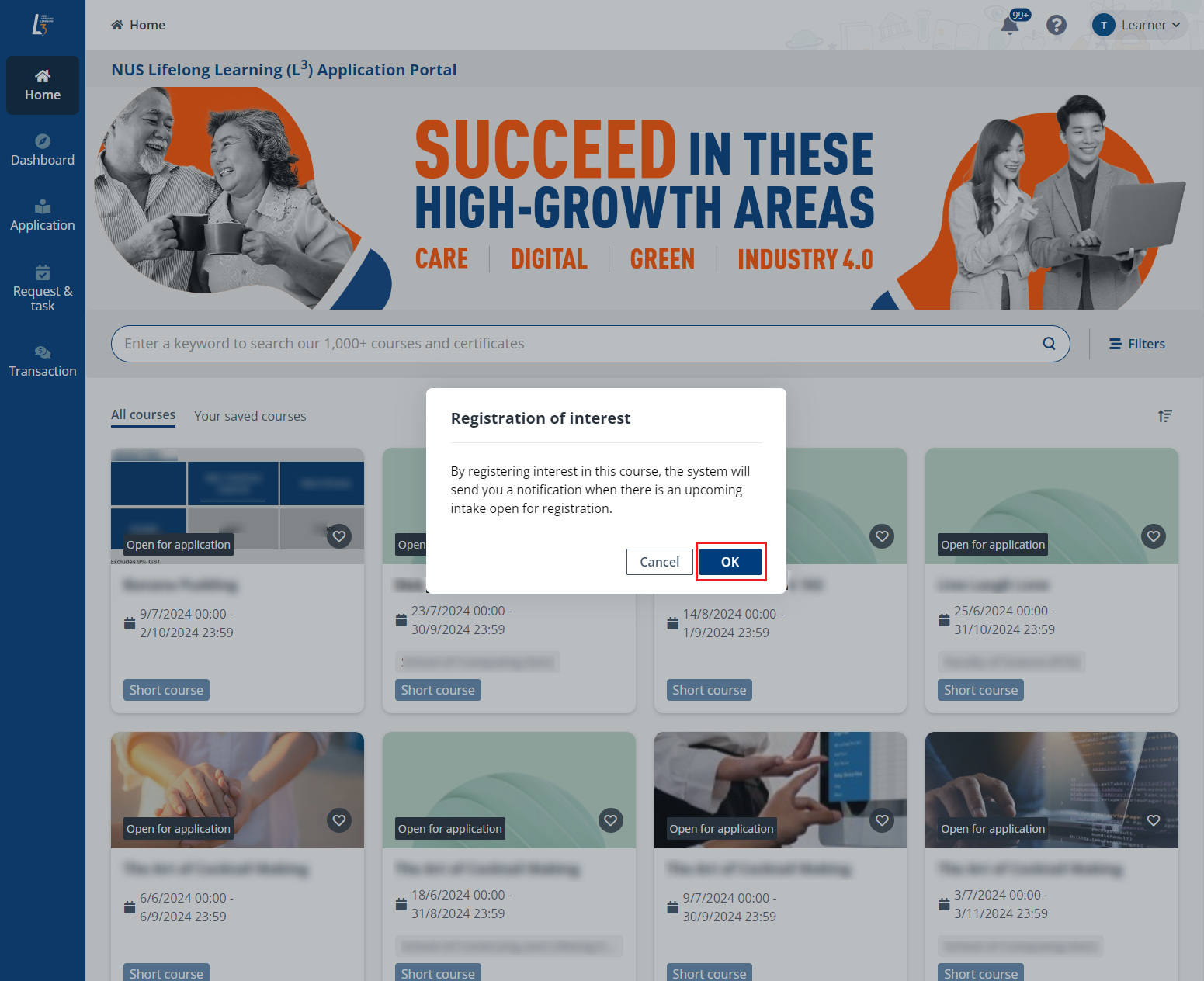
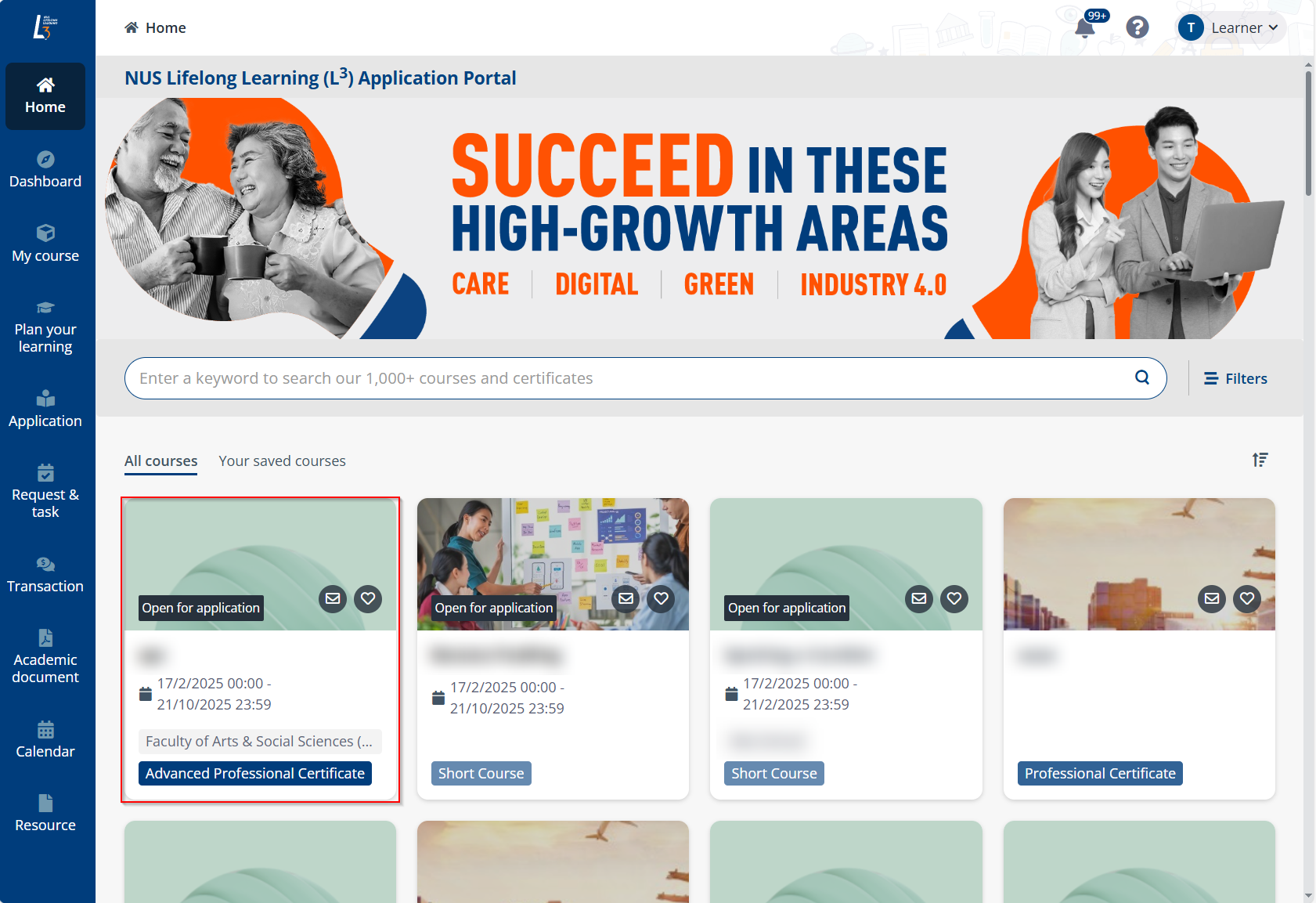
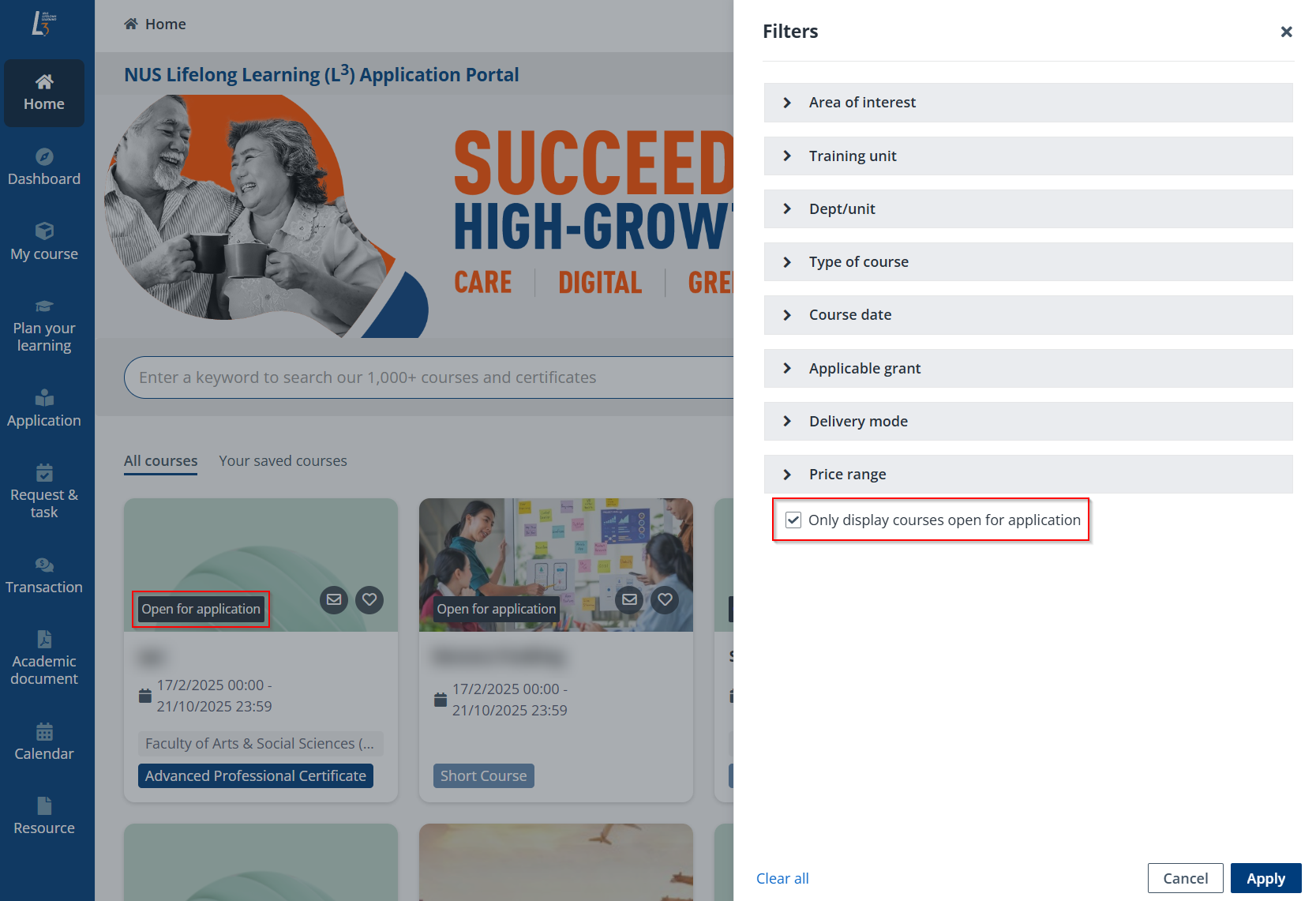
1. In the learner portal, click Home in the left navigation to access the course catalogue. All courses and certificate programmes will be displayed.
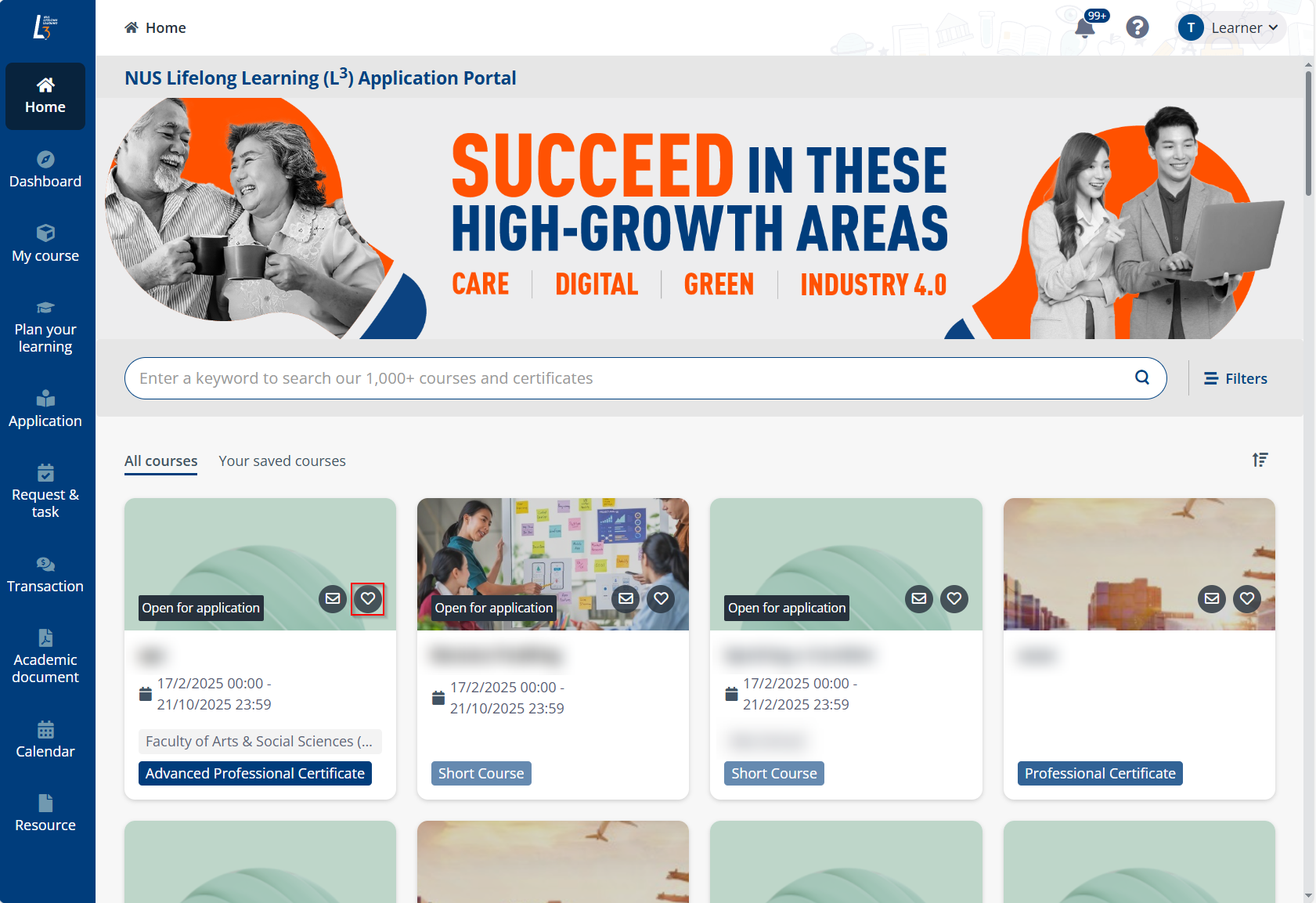
2. Locate a course or certificate programme that is open for application, and then click the course or certificate programme card.
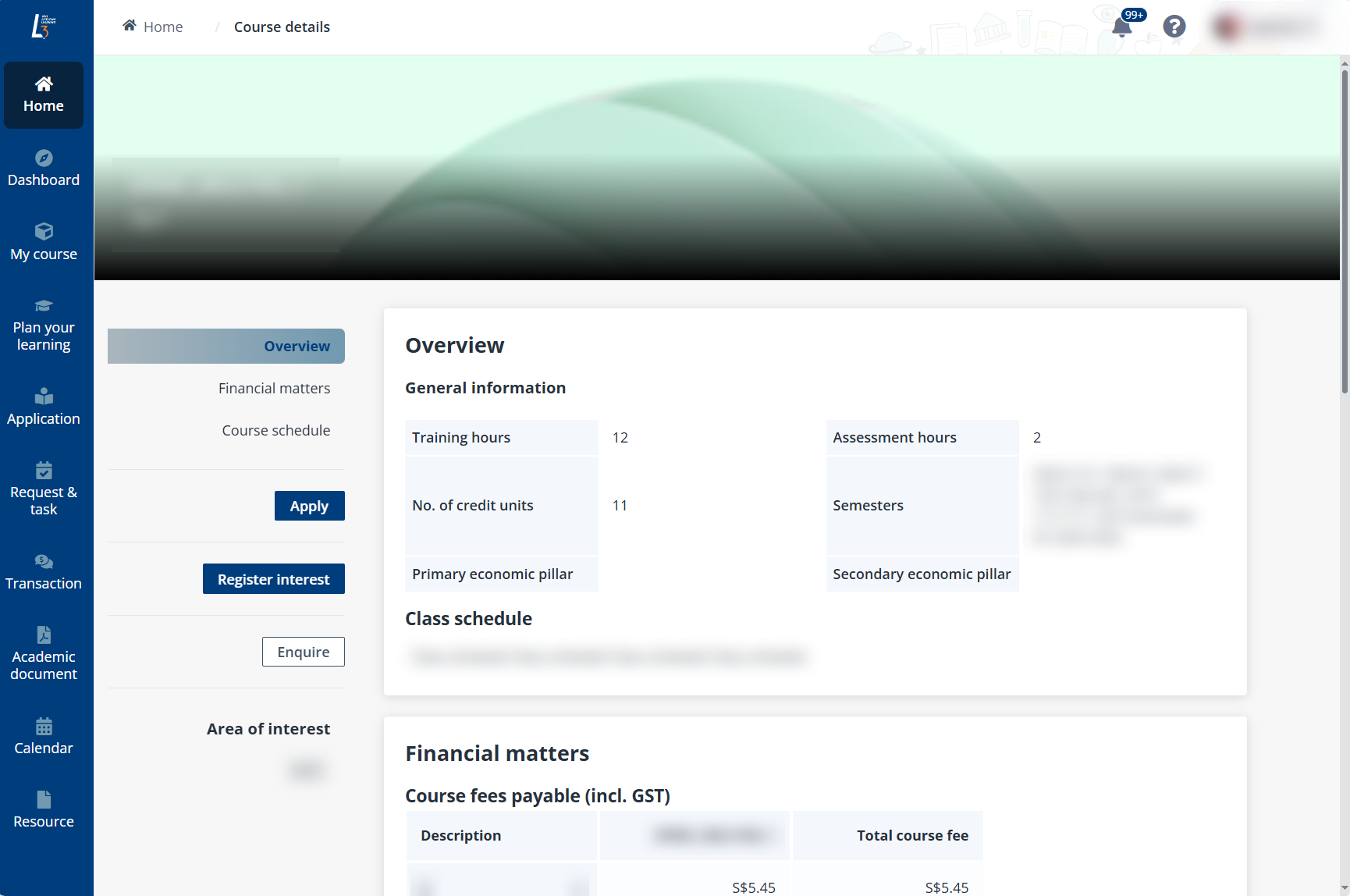
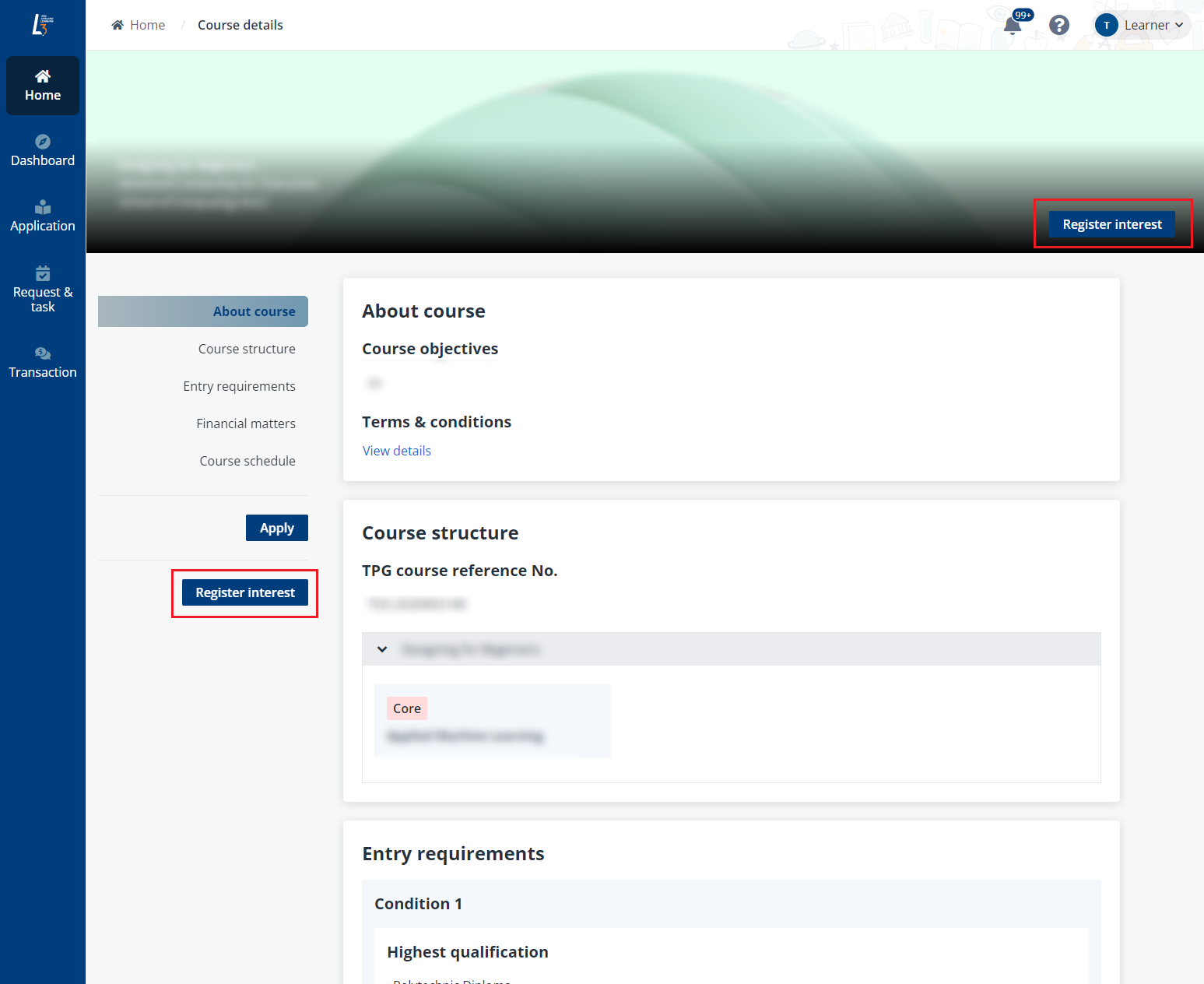
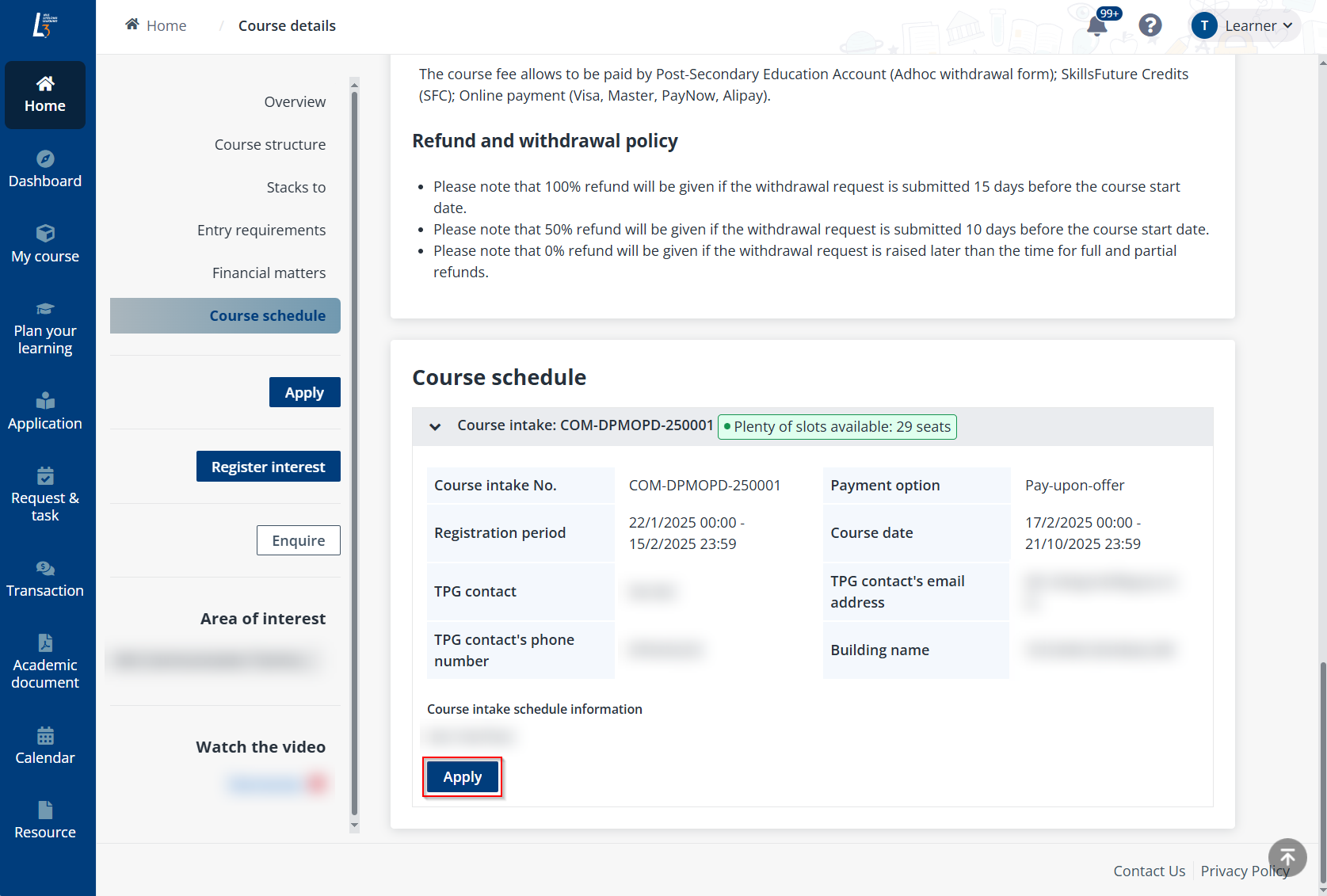
3. On the Course details page, you can apply for a course or certificate programme with the following method:
•For short courses, click Apply under the course intake you would like to apply. This brings you to the application form.
•For certificate programmes, refer to the following steps to access the application form:
i. Click Apply for Prof Cert.
ii. Select from the provided course intakes for each professional certificate in the Apply for professional certificate panel and click Apply.
*Note: The short courses you selected must meet the required number of core courses and training hours before you can proceed with your application.
The content of application form varies with courses. Refer to the instructions in the corresponding sections below to complete the application form.
To complete the Applicant details section, refer to the following steps:
1. In Applicant details, you can view your personal information retrieved from My profile.
Note the following:
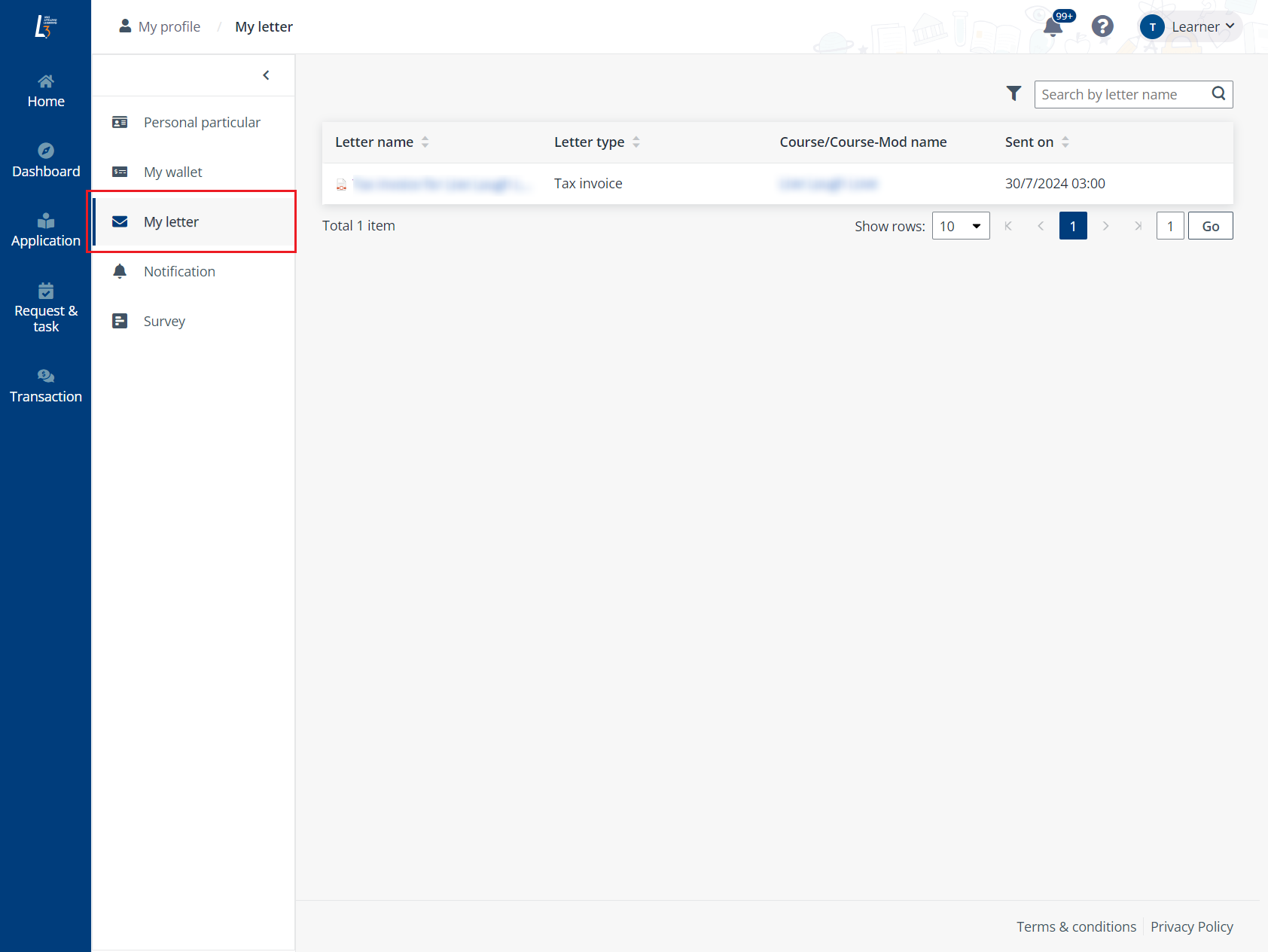
•To manually update the personal information, go to My profile > Personal particular.
•If you are a company-sponsored applicant, ensure that your application is indicated as company-sponsored before submitting the application. If your application is company-sponsored, the sponsorship information is displayed in the Company sponsorship information section.
2. In the Where do you hear from us? section, select the media.

3. Click Save and next. A warning message, “Please be aware that, to qualify for SSG Funding, it is essential that your information is retrieved from Myinfo. Not doing this could negatively affect your funding eligibility.” will be displayed. Click OK to proceed.
To complete the Education qualification section, refer to the following steps:
1. In Education qualification, click Add education qualification and fill in the information of the education qualification, and click Save when you finish.
Alternatively, you can click Sync education qualification from profile, select the education qualifications to sync from your profile, and click Save.
Note the following:
•If the academic qualification/professional certification you selected requires a subject/specialisation, click Add subject/specialisation and fill in the information on the subject/specialisation.
•If you have completed the academic qualification/professional certification with no pass, select the Completed with no pass checkbox.
•If you cannot find an appropriate academic qualification/professional certification in the list, enter the name of an academic qualification/professional certification in the Additional information field.
2. In the Supporting documents field, click Select system files, select files, and then click Add to add them as supporting documents. You can also upload files from your local device by dragging files to the upload box or clicking browse to browse and select the files.
3. Click Save and next.
To complete the Employment details section, refer to the following steps:
1. In Employment details, click Add employment details, fill in the information, and then click Save.
Alternatively, you can click Sync employment details from profile, select the employment details to sync from your profile, and click Save.
2. (Optional) In the Supporting documents field, click Select system files, select files, and then click Add to add them as supporting documents. You can also upload files from your local device by dragging files to the upload box or clicking browse to browse and select the files.
3. Click Save and next.
To complete the Other information section, refer to the following steps:
1. In Other information, complete the required information for the application form.
2. Click Save and next.
To complete the Pre-submission minimum entry requirement check section, refer to the following steps:
1. In Pre-submission minimum entry requirement check, your can see the MER check results for the course in the Minimum entry requirement check results section. Refer to the explanation below for each check result:
•Green tick – This result meets the minimum entry requirement.
•Not checked – This result does not meet the minimum entry requirement.
•Submission check – The current application form meets the minimum entry requirement.
2. In the Minimum entry requirement declaration section, you can see whether you meet the minimum entry requirements.
•If you meet the minimum entry requirements, select the I confirm that I have met the minimum entry requirements and wish to proceed checkbox.
•If you don’t meet the minimum entry requirements, select the I don't meet the minimum entry requirements and would like to proceed with recognized prior learning application checkbox and fill in the information for the RPL registration form.
3. Click Save and next.
For courses without minimum entry requirement checks, you need to choose whether to proceed with recognized prior learning application and fill in the registration form in the Additional information step.
To complete the Declaration form section, refer to the following steps:
1. In Declaration form, you can see all declaration forms.
2. Click the declaration form name, select the I hereby acknowledge and accept the responsibilities under this declaration checkbox after reading the declaration, and click Save.
3. Repeat the above step for each declaration form if there are multiple declaration forms.
4. Click Save and next.
For available actions in the Preview application form section, refer to the following steps:
1. In Preview application form, you can see all application information configured in previous steps.
2. When you finish checking the application information, click Submit to submit the application form. The alert message, “You have completed the application form. Once submitted, information of all steps cannot be edited anymore.”, appears, click Confirm.
3. Your application is submitted, you can click View application details to view details of your submitted application.
Q: Can learners who didn’t meet MER still submit applications?
A: Yes, course coordinator needs to verify learner's MER and award offers at own discretion.