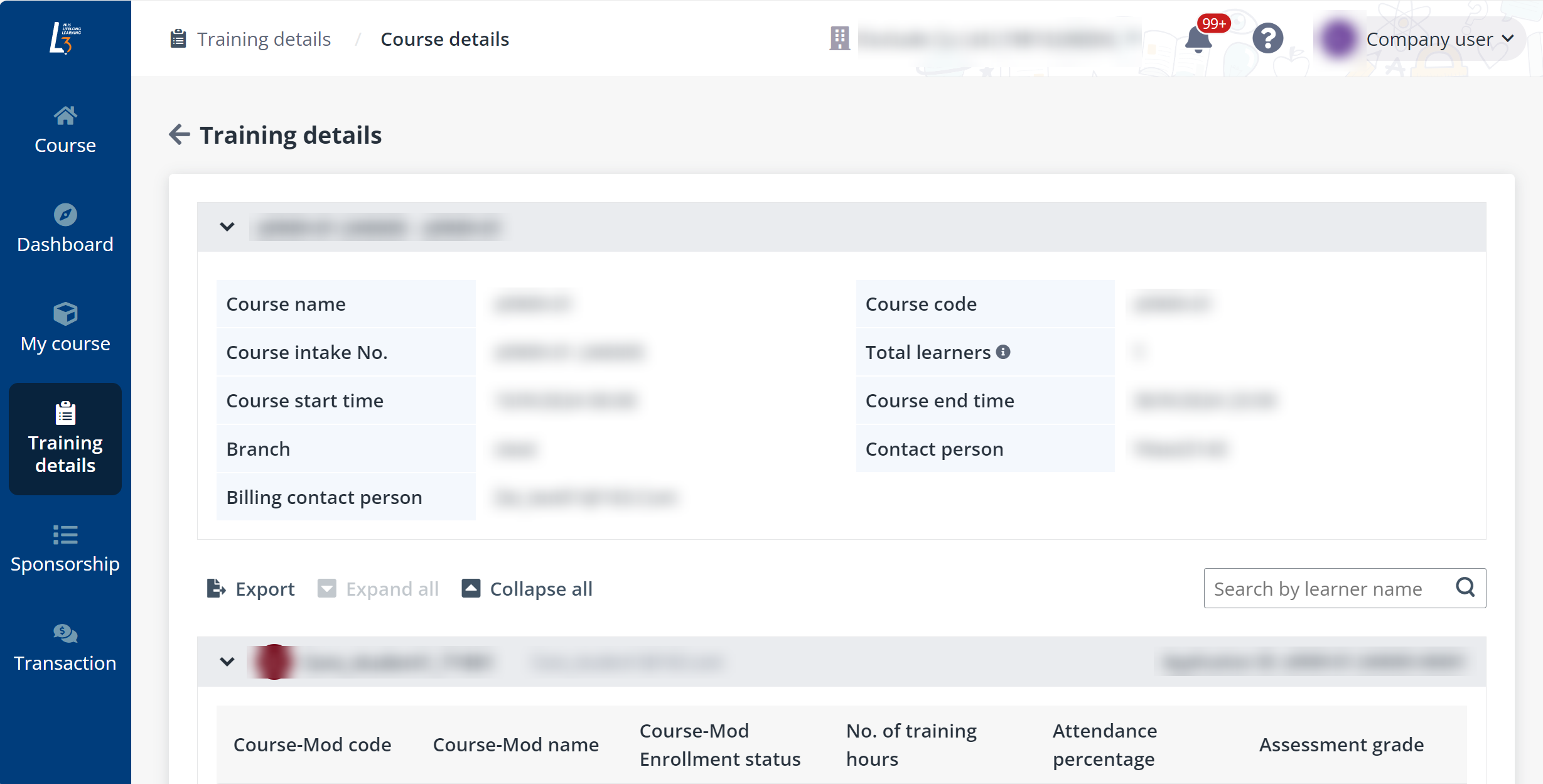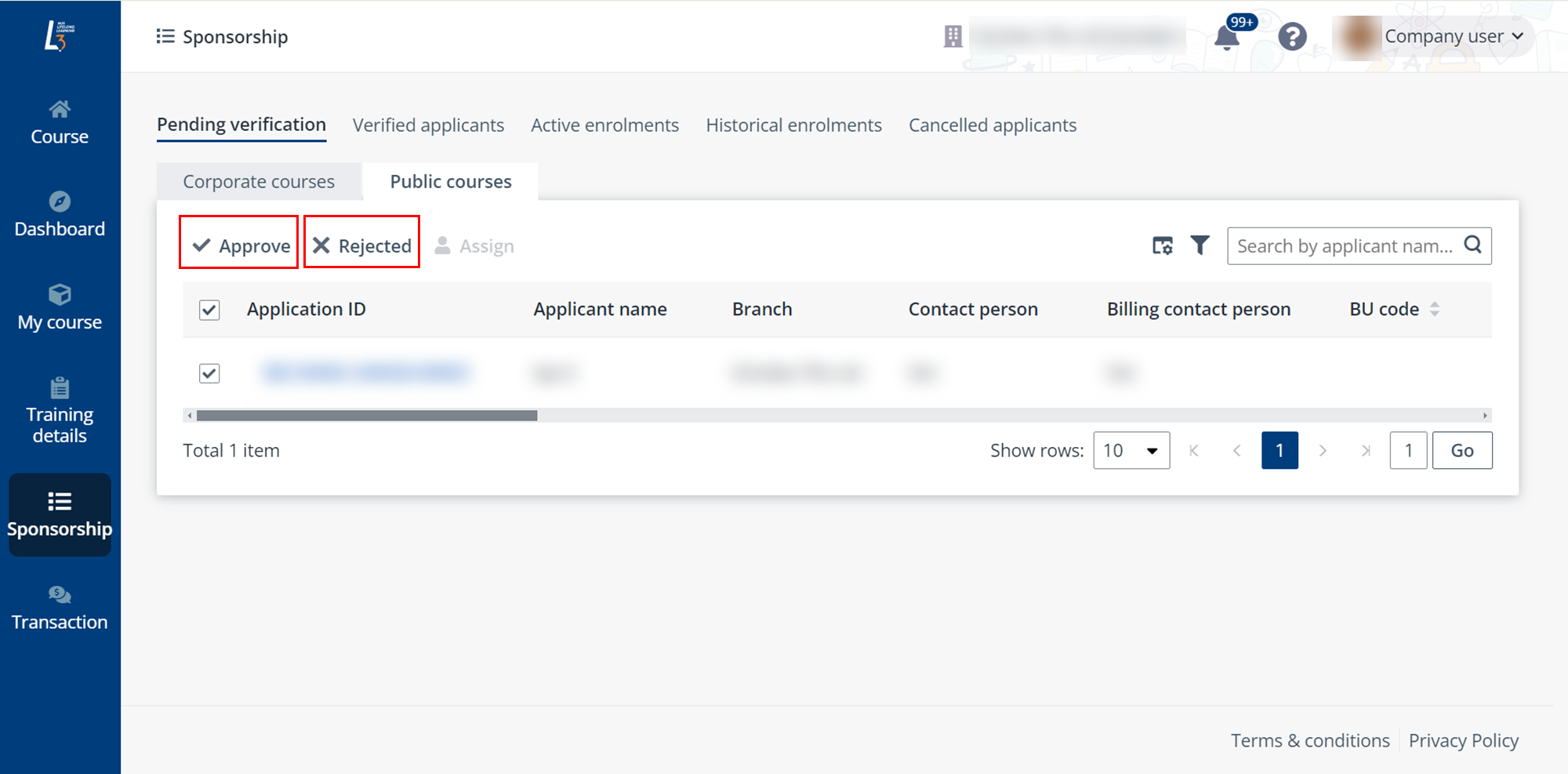
In the system, there can be courses that allow companies’ seat reservation. With this functionality, you can reserve seats on courses for your employees without requiring immediate learner registration or payment. This allows you to plan and allocate training resources efficiently, ensuring access to learning opportunities when needed.
*Note: Only public courses with sponsorship links generated can have seat reserved.
To reserve seats in these courses, complete the following steps:
1. Click My course and go to the Public courses tab.
2. Click Add applicant in the upper-right corner and select Reserve seat.
3. On the Reserve seat page, enter the number of seats to reserve without payment and specify the invoice recipients.
4. Click Generate link.
5. On the Link generated page, copy the seat reservation link and send it to the employees for further registration.
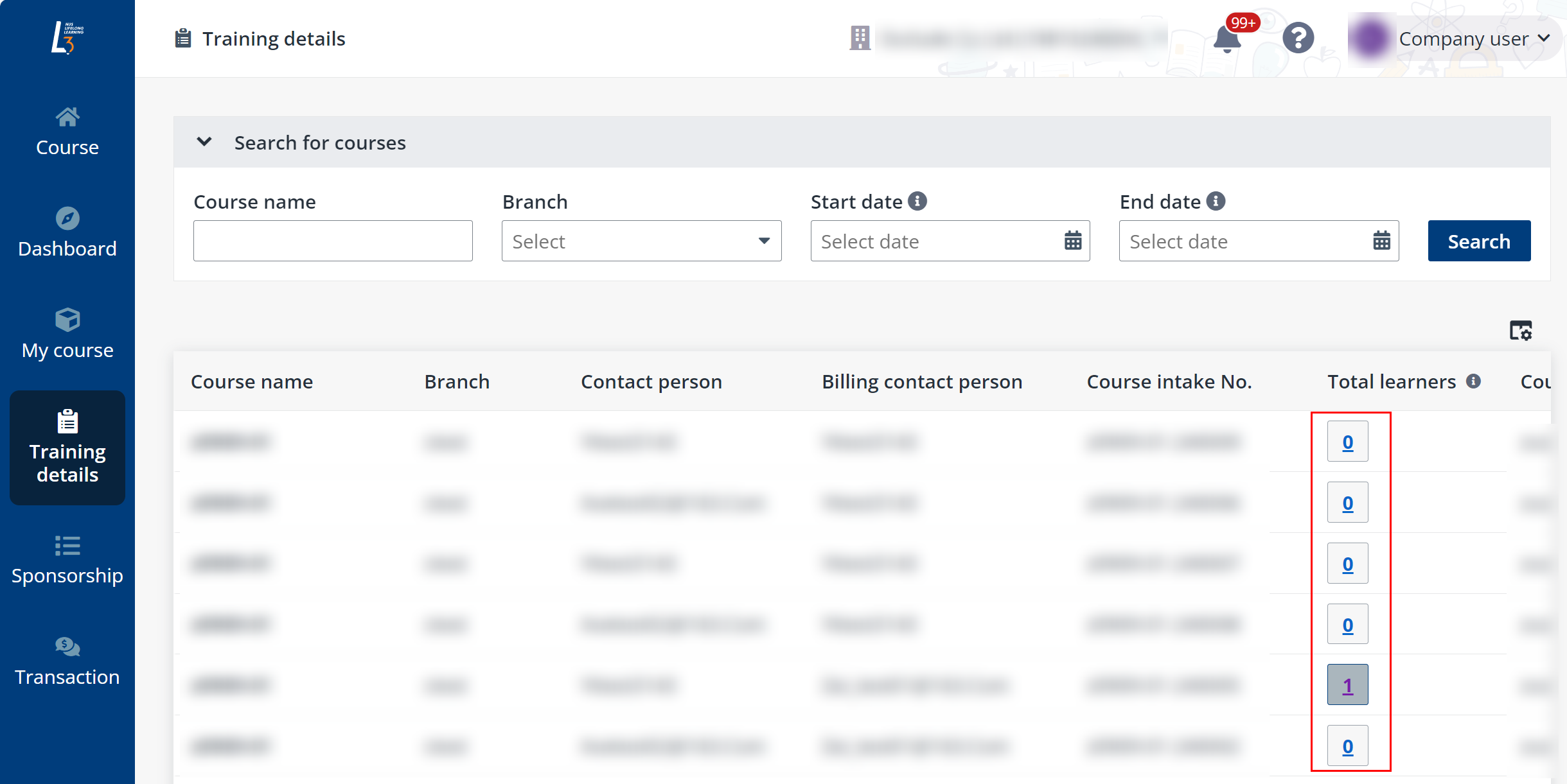
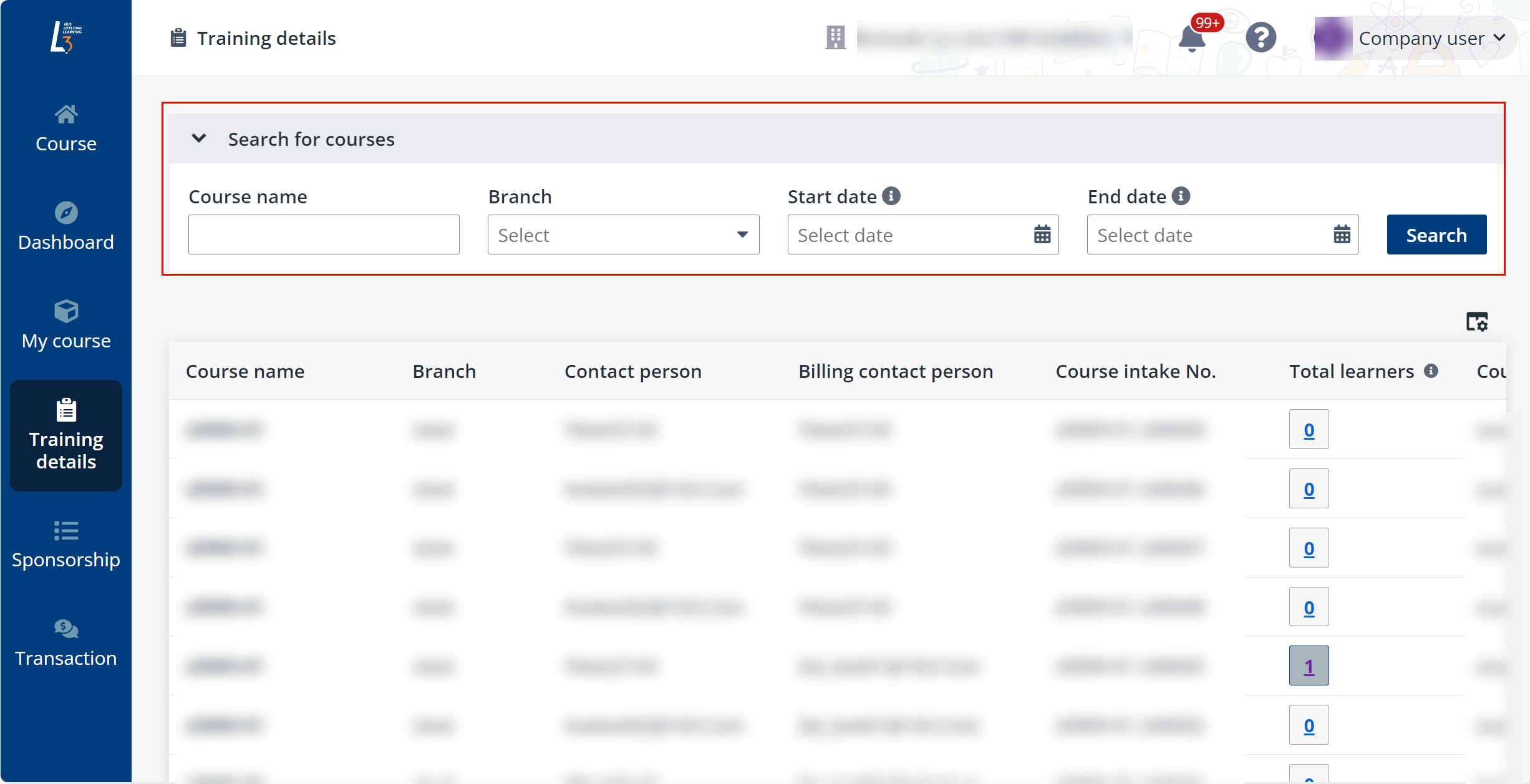
Links generated can be checked on the Course details page. Reservation link can be identified by the value in the Reserved column. Additionally, according to the course configurations, unused reserved seats will be expired and released to other course applicants a period before the course’s registration end date. Ensure that you use the reserved seats in time before the link expires.